
Im Maileon Help-Center finden Sie umfassende Dokumentationen zu unserem System.
Beliebte Suchanfragen: Importe | Rest-API | Integrationen | SMS
Global Content
1. Overview & Concept
With Global Content, you manage recurring content and layout elements – such as headers, footers, legal notices (disclaimers), or promotional banners – centrally in one place.
Instead of manually maintaining the same content in numerous templates, drafts, and saved blocks and having to edit each mailing individually when changes are made, you insert these elements as dynamic references. When a Global Content element is updated, Maileon automatically applies the changes to all linked templates and drafts.
Main benefits:
- Consistency: changes (e.g., new legal requirements or design updates in the footer) are made centrally and take effect everywhere.
- Time savings: no manual maintenance of duplicate content across templates and drafts.
- Reliability: when Global Content is deleted, its latest version is permanently embedded in all templates (inlining) – preventing display errors or empty areas.
- Auditability: mailings that have already been sent retain their original historical state.
Global Content is account-specific: each element is available only within the account in which it was created.
2. Available Content Types
When creating a Global Content element, a specific type is defined. This determines its structural level and compatibility in the editor.
If you need the content with a different type, you must create a new Global Content element with the desired type. Existing references are not converted automatically: replace the original element with the new one in the affected templates and drafts, and delete the original element if it is no longer needed The type cannot be changed after creation.
| Type | Description |
| email_block | A content block within a row in the email editor (standard case). |
| email_row | A complete layout row (e.g., multi-column header or footer rows). |
| email_slot | An individual content slot within a block. |
| email_html_snippet | A pure HTML fragment for inclusion in email mailings. |
| global_html_snippet | A generic, cross-channel HTML snippet. |
| landing_page_html_snippet | An HTML fragment for landing pages. |
3. Inserting And Updating Global Content In The Email Editor
3.1 Inserting a Global Content element
Open the mailing or template in the email editor → switch to the Saved tab in the left sidebar to open the Global Content gallery.
Drag and drop the desired block to the required position on the canvas (fig. 1).
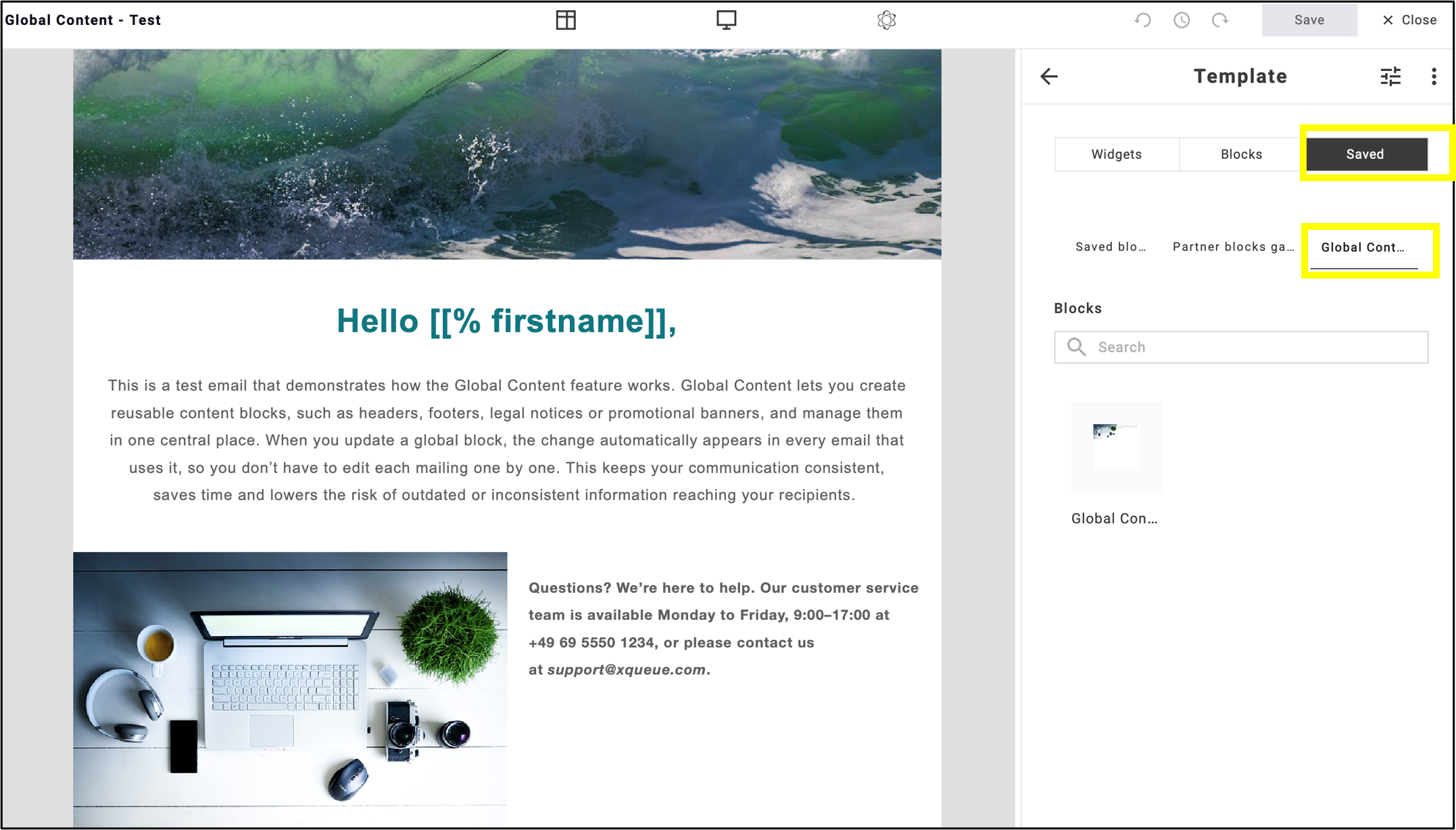
fig. 1: Find ‘Global Content’ gallery in the ‘Saved’ tab of the left sidebar.
Note: The content is read-only in the editor to prevent accidental local overwrites.
3.2 Saving an Element as a Global Content
Select the desired row or block in the editor. In the context menu of the side bar, select Save as Global Content (fig. 2).
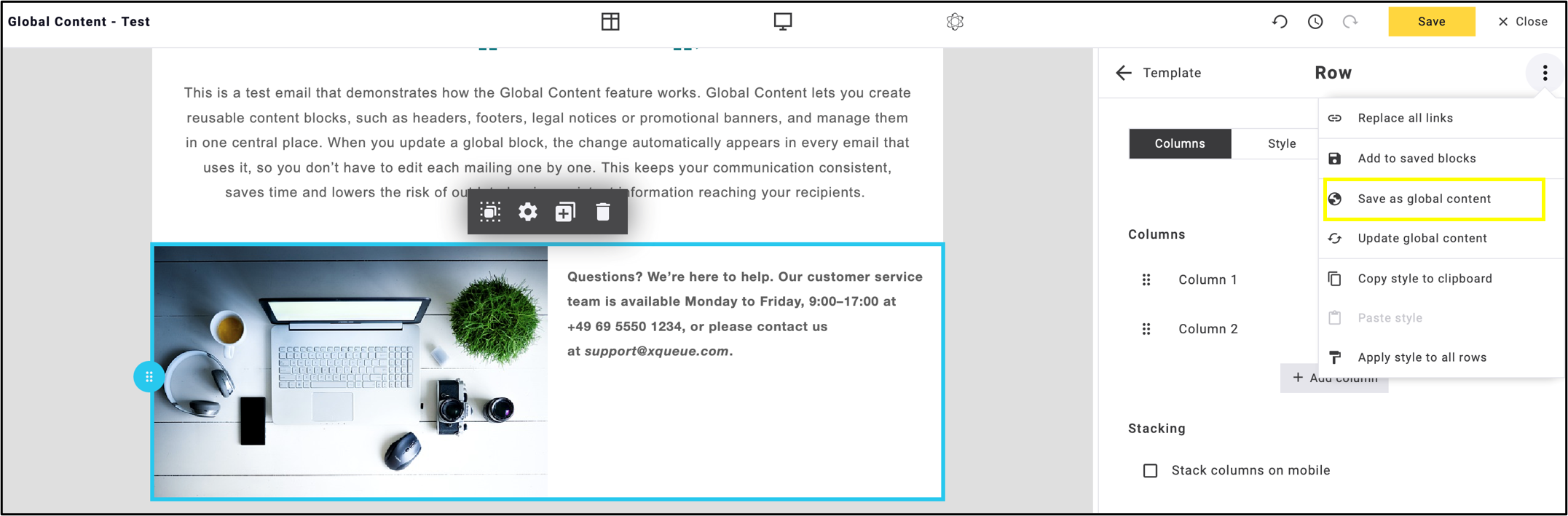
fig. 2: Save ‘Global Content’ in the context menu of the side bar with ‘Save as global content’ option.
Enter a Name that is unique in your account. Optionally, add up to 10 keywords (fig. 3).
Keywords (up to 10 per element) are tags that make Global Content easier to find. They are added when saving an element or later via Edit keywords (see 3). In the overview, filtering by keyword shows only the elements carrying that tag.
Click Save.
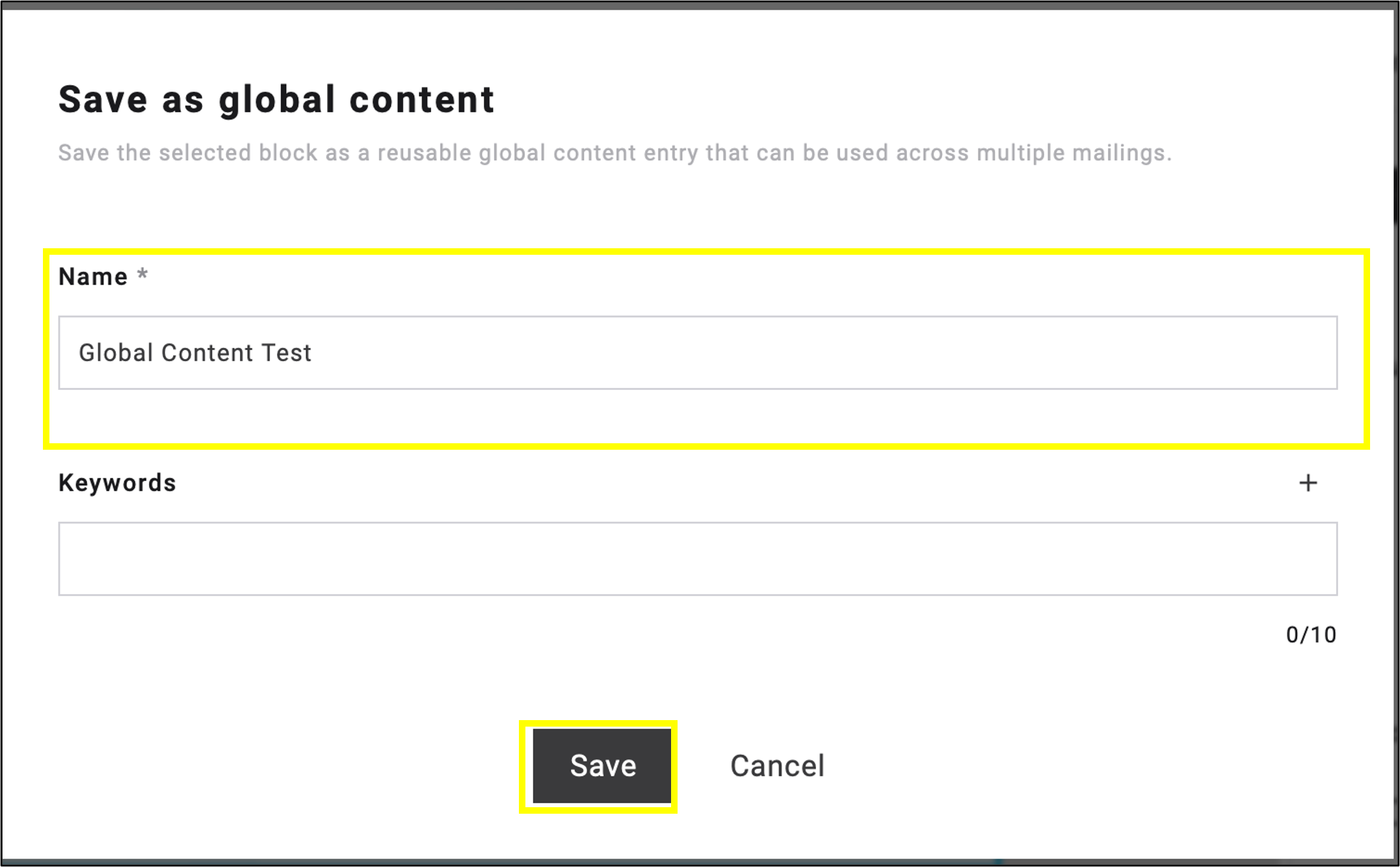
fig. 3: Add a name and optionally keywords to save your ‘Global Content’.
After saving, the element is transferred to the library and is immediately stored as a global reference in the current mailing.
3.3 Updating Global Content
Global Content and cannot be edited directly.
Tip: to see where a Global Content is used before you unlink or update it, click View referrers in the side panel (fig. 4).
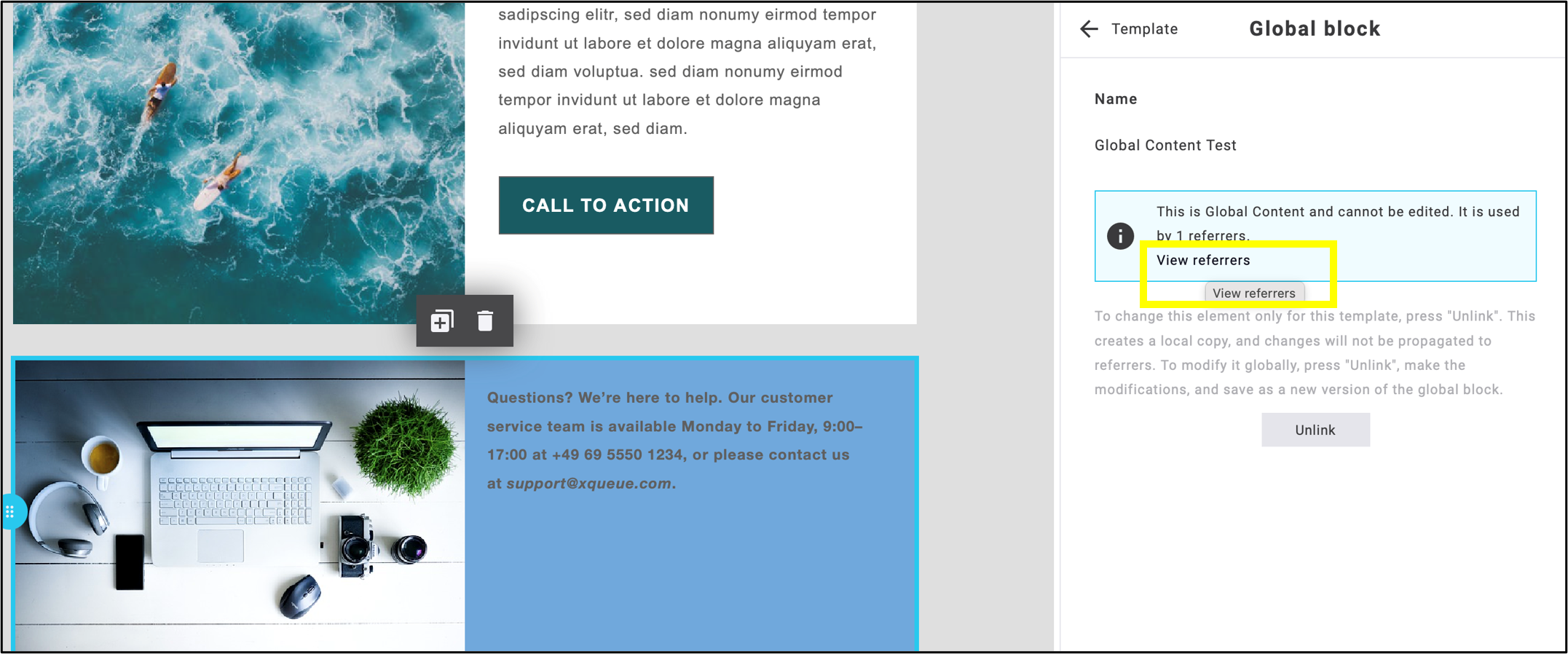
fig. 4: The ‘View referrers’ list in the side panel, showing the mailings and templates that use the selected ‘Global Content’.
To change or update it, select the Global Content and click Unlink in the side settings panel (fig. 5).
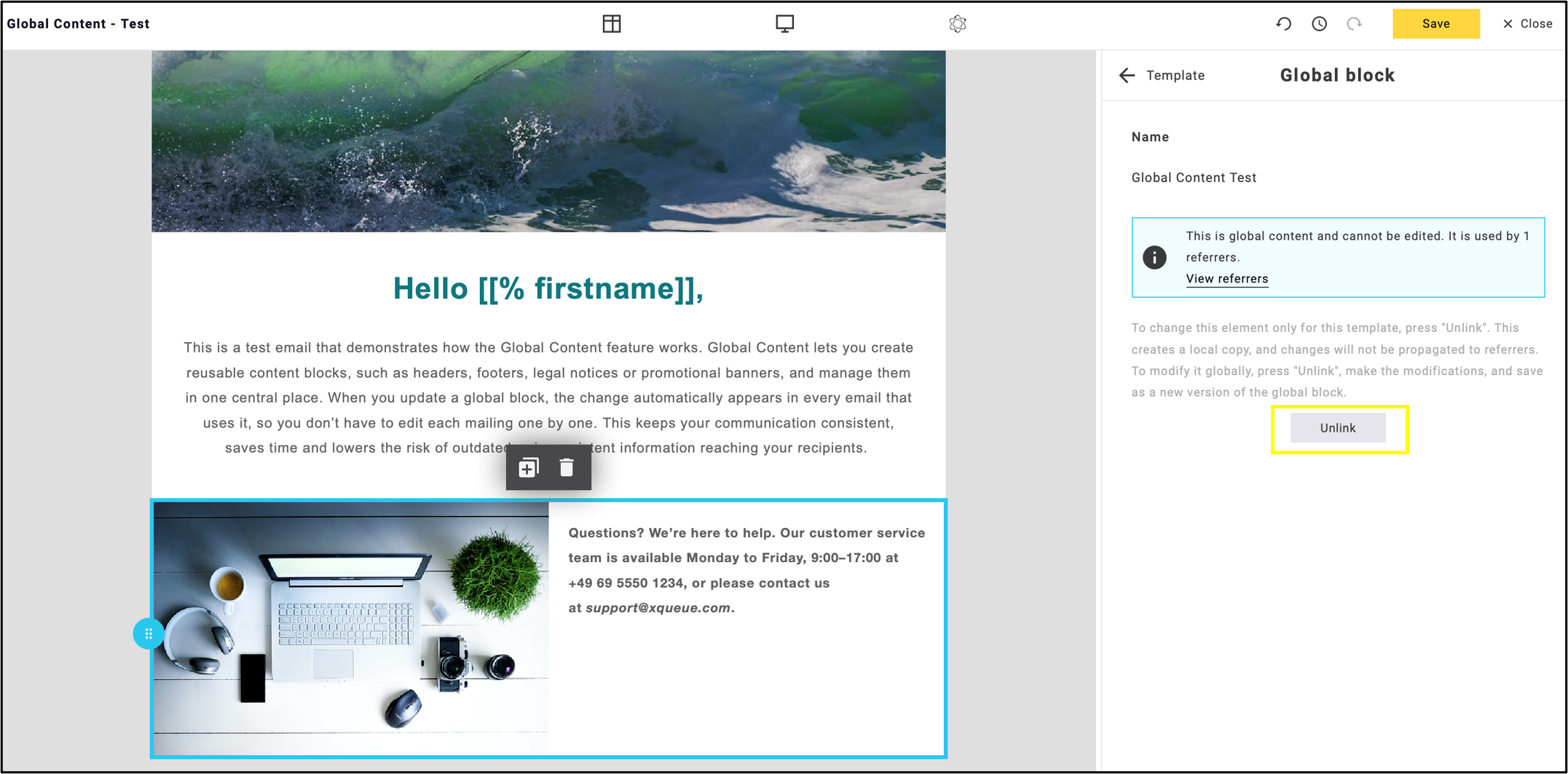
fig. 5: Click ‘Unlink’ to edit or update the ‘Global Content’.
The block becomes a regular block with editable columns, style, settings, and links (fig. 6). After editing, click Save.
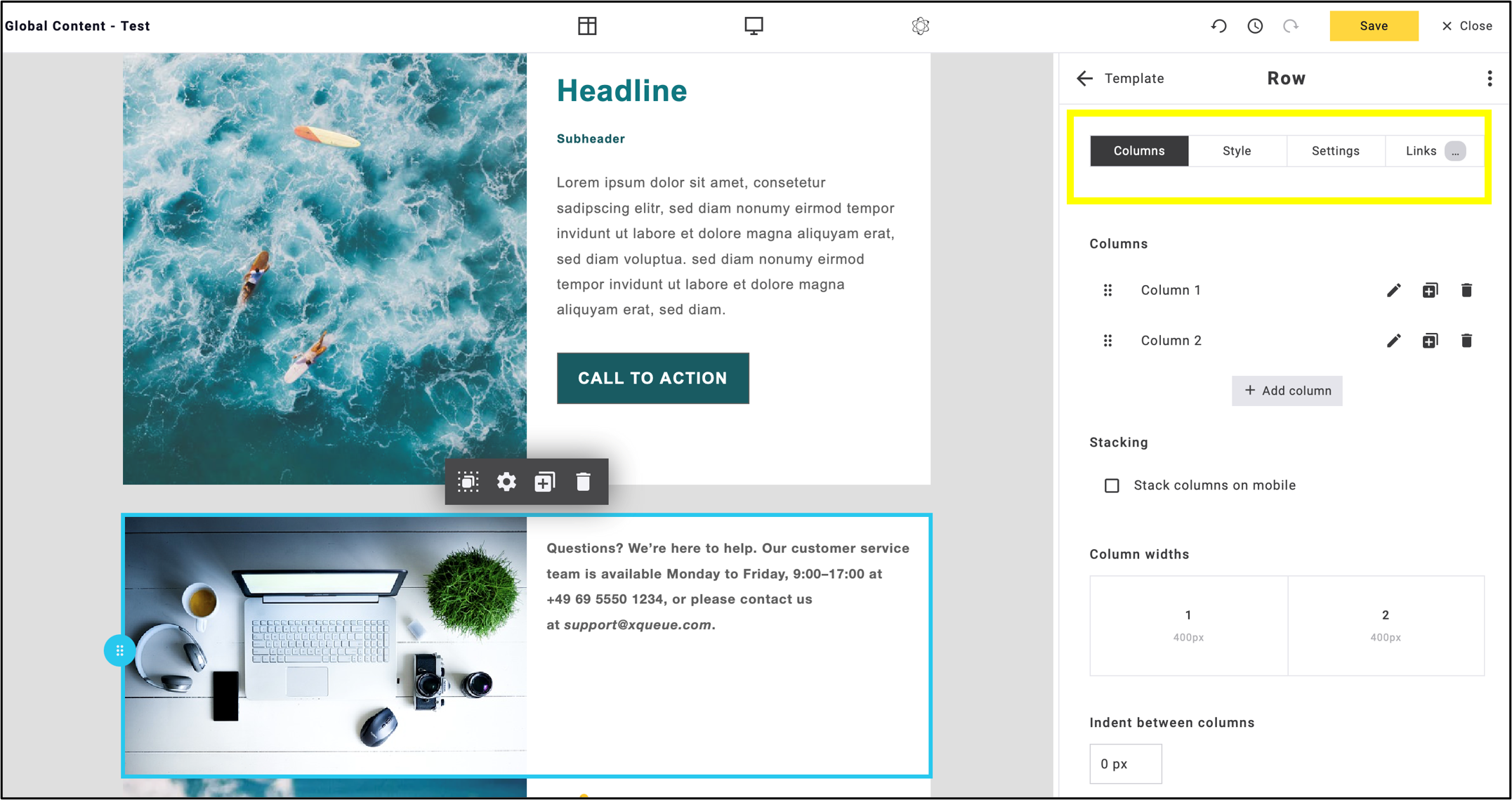
fig. 6: Edit the ‘Global Content’ as for a normal block, then click ‘Save’.
Select the edited row or block again, open the three-dot menu at the upper right, and save it to the Global Content library.
In most cases, Maileon recognizes which Global Content the element came from and preloads its name and usages. Review the usages to rule out unintended effects on other campaigns, then click Update (fig. 7).
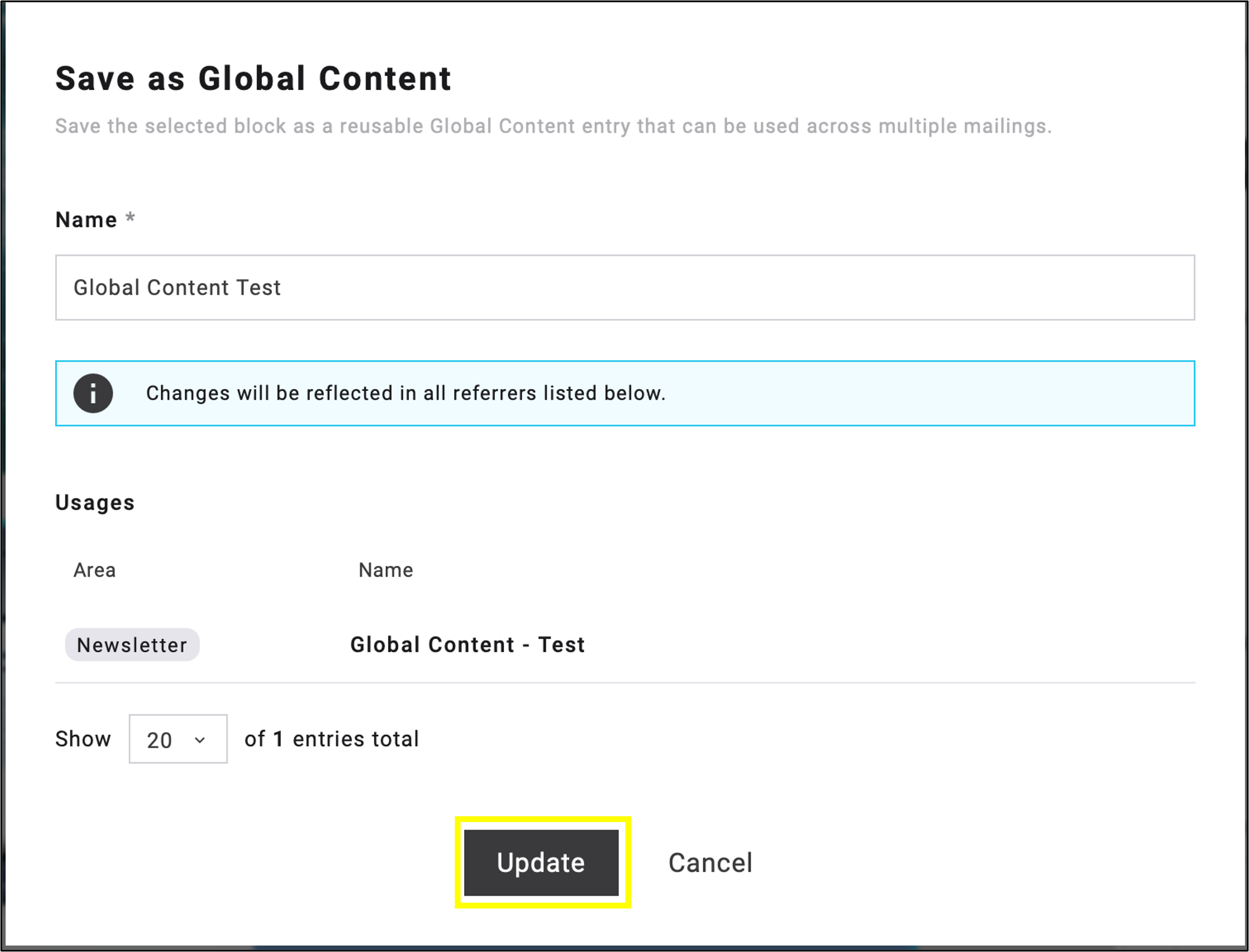
fig. 7: Review the usages to avoid unintended effects on other campaigns before updating.
The new version is saved in the library and applied to all mailings and templates that use this Global Content.
The name of the Global Content can also be changed if desired. In this case, you can save the new name the same way as before.
When you update a Global Content element, Maileon applies the change to the mailings that use it.
What happens depends on the mailing’s status:
- Active triggers and DOI mailings: Maileon automatically creates and publishes a new version of the mailing with the updated content. All later sends use the new version.
- Campaigns in creation: Maileon automatically creates and publishes a new version of the mailing with the updated content, so the latest content is always sent.
- Scheduled mailings: The updated content is added automatically. The content is only fixed when the sendout actually starts, not when the mailing is scheduled.
- Templates and drafts: The existing reference stays, and the content is re-rendered with the update.
- Mailings that are being sent or have already been sent: These are never changed.
Note: The update runs in the background. It usually takes from a few seconds to a few minutes, depending on how many mailings use the element. If a sendout starts before the update has reached that mailing, the mailing goes out with the previous version.
3.4 Unlinking Global Content
Unlinking turns Global Content into a regular, local block. Use it in two cases:
- To update the Global Content: Edit the unlinked block and save it back to the library with Update (see 3.3). Note: Updating a Global Content element may affect multiple linked mailings and templates. Review all listed usages carefully before confirming the update!
- To customize it for one mailing only: Edit the unlinked block without updating the library. The central version and all other usages stay unchanged, and later updates to the Global Content no longer affect this block.
You can safely update or delete a Global Content at any time. Linked content is updated accordingly, sent mailings stay exactly as they were sent, and nothing breaks.
What happens when you update or delete a Global Content depends on the state of each place that uses it:
| Where it is used | On update | On delete |
| Active templates, saved blocks and unsent mailings | Receive the new content and stay linked to the global content | Receive a fixed copy of the content; the link is removed |
| Already sent mailings | Keep the content they were sent with, permanently embedded; they are removed from the usage list | Not affected |
| Unlinked local copies | Not affected | Not affected |
4. Managing Global Content on the overview page
All Global Content entries of your account are listed under Data → Libraries → Global content (fig. 8). This area provides an overview of all Global Content entries.
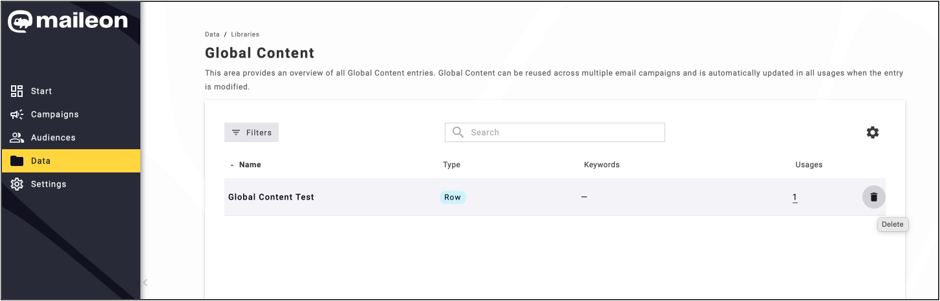
fig. 8: View all ‘Global Content’ entries under Data → Libraries → Global Content.
Here you can
- Filter by type and by keywords.
- Search by name.
- Sort the list by name.
The table shows these columns:
| Name | Name of the entry |
| Type | Type of the entry (row, block, slot, snippet) |
| Keywords | Keywords assigned to the entry |
| Usages | Number of templates, saved blocks and mailings that currently use the entry |
Global Content element can be deleted at any time with the bin icon at the end of its row. Before you delete an element, keep in mind that you can no longer update its content centrally: every mailing that used it keeps its own copy, and each copy has to be edited separately.
Deleting never breaks a mailing. Before the entry is removed, its current content is copied into every place that uses it (drafts, scheduled mailings, active trigger and DOI mailings, templates, saved blocks).
- Content stays the same: These mailings keep exactly the same content as a local copy. The copy is no longer linked to the Global Content library, so later changes in the library don’t affect it. Recipients see no difference.
- No interruption: Active trigger and DOI mailings keep sending as usual. Sent mailings are not affected.
- Background processing: The element disappears from the list right away, and the rest of the deletion runs in the background. If a mailing that uses the element can’t be updated, the element is kept and not deleted.
Tip: wait until the deletion has finished before copying a mailing that used the entry. A copy made while the deletion is still running can end up with an empty block in the editor.
To change the content of an element, unlink and update it in the email editor (see 3.3).