
Im Maileon Help-Center finden Sie umfassende Dokumentationen zu unserem System.
Beliebte Suchanfragen: Importe | Rest-API | Integrationen | SMS
4. Emailing Archive
Emailing Archive
General Information
Maileon automatically creates non-personalized (without name or other personal characteristics) archive issues from all emailings that have been sent.
You can integrate these Archive-URLs into your website, other emailings, or even into an RSS feed. You have the choice of using specific or general Archive-URLs, which we explain in detail below.
Newsletter issues that have already been sent can, for example, be linked to a website as viewing copies for visitors to the site.
There is not only an additional information value of providing the latest newsletter issues. The presentation of appealing samples of your newsletter will arouse interest among visitors and thus helps generate more newsletter subscriptions.
You find the Emailing Archive under MAILINGS > TOOLS > EMAILING ARCHIVE. All sent mailings are listed in tabular form in this section (fig. 1).
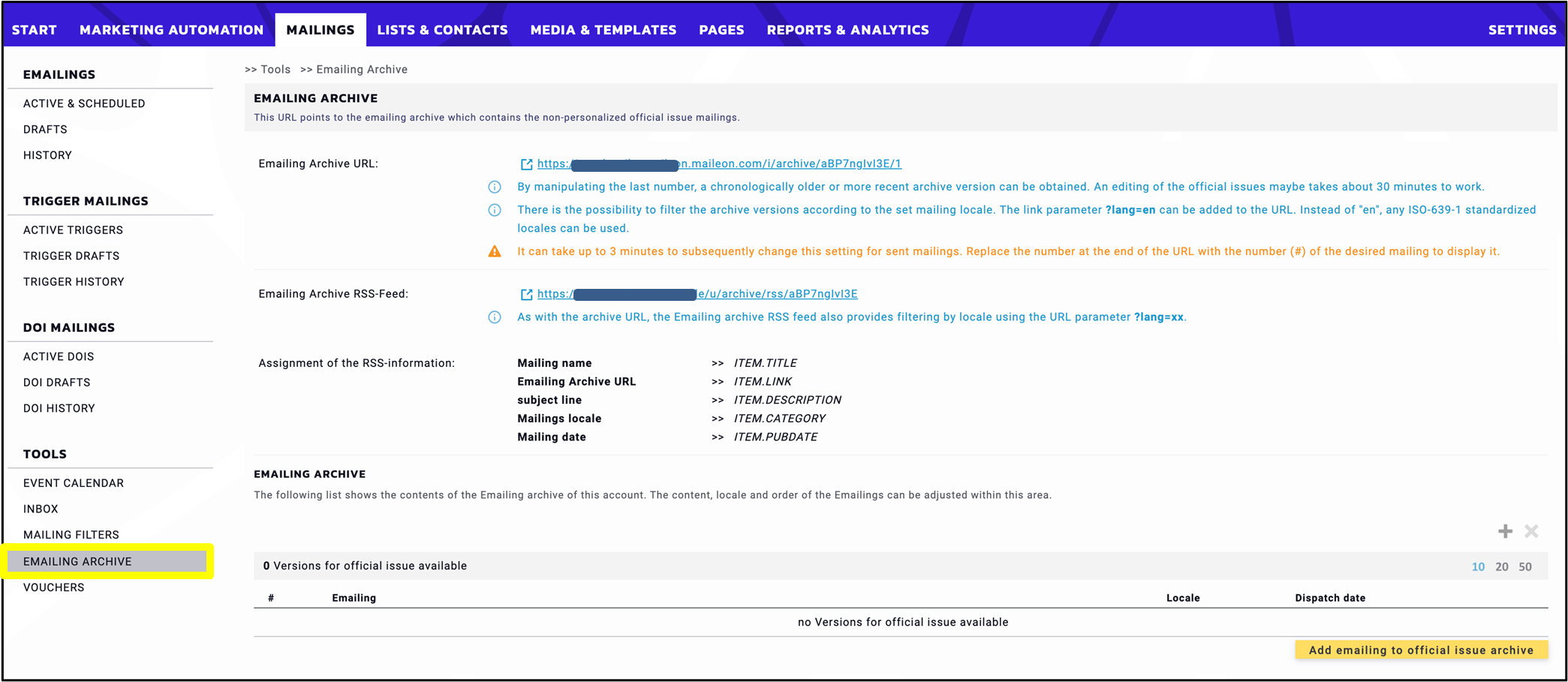
Fig. 1: The ‘Emailing Archive’ in Maileon lists all dispatched emailings.
Emailing Archive list
The list in the Emailing Archive (fig. 2) includes automatically all sent emailings of this account. The list is sorted chronologically in descending order, so the most recent dispatch is usually at the top in position 1.
Independent of this, the content, language and order of the emailings within this area can be adjusted manually. You can also delete emailings from this list.
Please note: If you rearrange the order or delete emailings from the list, this will affect the behavior and the output of the dynamic Emailing Archive URL and the Emailing Archive RSS-Feed (detailed information below).
Editing of the official issues takes effect after up to 30 minutes, especially when it comes to updating the dynamic Emailing Archive URL.
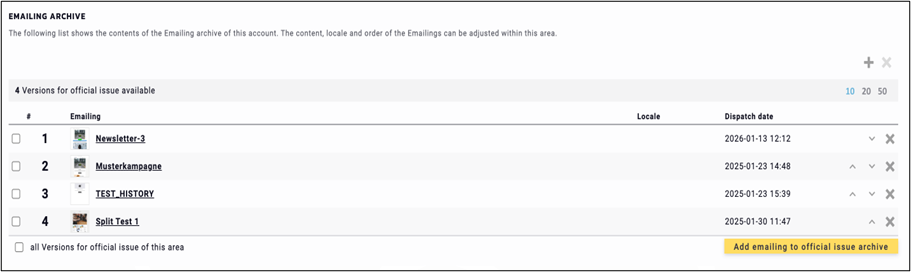
Fig. 2: List of archived emailings, in chronologically descending order.
Components of the Emailing Archive list
The list of the Emailing Archive shows the same tabular structure as any other list in Maileon. Each row lists one emailing with further details. The list contains the following elements:
- Icons (top right): Click the “+” to add a sent emailing manually to the official issue archive. The “X” will delete all checkbox-marked emailings from the list. It will only be active when you click on any checkbox to select one or more emailings.
- Status row: Shows the number of available entries in the official archive. On the right side you can choose the maximum number of displayed rows (10, 20 or 50 rows in one view). The blue colored number shows the actual setting.
- Checkbox: Select emailings for deletion.
- Position number (#): These numbers can be used as an appendix to the dynamic Emailing Archive URL, if you want to link and arrange more than one archived emailing (info and example see below).
- Emailing: Internal name of the emailing. The name is linked – when you click on it, the Regular Details pop-up window appears. Here, you will find the specific Archive-URL of this emailing as well as some reporting data and the wrench icon for manual adjustments.
- Language: Here you see the transmission language of the emailing as abbreviation (“en”, “de”). This information – used in a link parameter (?lang=xx) – allows you to filter archive versions according to the set transmission language (see further below for an example).
- Dispatch date: The time when the emailing was sent, format: yyyy-mm-dd and hh:mm.
- Sorting Arrows up/down: You can change the sorting order of the list and move emailings by clicking on the arrows.
Please note: A manual change of position affects the output of the dynamic Emailing Archive URL, because it refers to the list and the position of the emailings. - Delete (X): Removes this emailing from the list. This may affect the order of the list and subsequently the output of the dynamic Emailing Archive URL!
- Button “Add emailing to official issue archive”: Usually, every sent emailing will automatically appear in the archive list. But in case you have manually removed an emailing and now want to include it once again, you can do so by clicking on this button or on the “+” at the top right of the table.
Creation of an Archive-URL
The Archive-URL of an emailing is automatically created while setting up a new emailing draft. The Archive-URL is shown in the basic settings of the emailing draft (fig. 3). Note: The Archive-URL will only be accessible after dispatch. For more detailed information about the setup of an emailing please go to the Basic Settings page.
There are three settings in the basic settings of the emailing creation process that are relevant to the Emailing Archive (see yellow numbers):

Fig. 3: Basic settings in the emailing draft, items (1, 2 and 3) relevant for the ‘Emailing Archive’.
- Official issue: when you click the checkbox, the emailing is placed at the first position of the Emailing Archive (after dispatch).
- Archive-URL (after dispatch): This specific URL is automatically generated by Maileon and displayed in the basic settings of the emailing draft.
- Mailing language: The chosen language in the dropdown will be taken over in the archive issue. You can filter the archive versions according to the set transmission language.
Different types of Archive URLs
here are three types of Archive URLs available. Which one you choose, depends on the desired function:
- Specific Archive-URL for each emailing – static (fig. 3),
- Emailing Archive URL – dynamic (fig. 1)
- Emailing Archive RSS-Feed – RSS (fig. 1)
Specific Archive-URL
Each emailing gets a unique Archive-URL in the creating process (see chapter “Creation of an Archive-URL). This link is static and will only call up one specific emailing. After the emailing is dispatched, you’ll find the Archive-URL in the Regular Details pop-up window which you can view by clicking on the internal name of the emailing in the tabular list (fig. 2).
Example:
- https://domain.maileon.com/u/archive/PaiYA0uoax93zc6N3s711Q
Emailing Archive URL
The general Emailing Archive URL points to the emailing archive which contains the non-personalised official issue mailings. It is a dynamic URL which refers to the issues currently listed in the Emailing Archive. If you leave the URL unchanged, it will always display the emailing that is in position 1 in the list (normally the latest issue). You can use the position digits in the list as parameters though, e. g. to specify a chronological sequence when you want more than one issue linked on your website/in an emailing.
Example 1 – Link the 3 latest newsletter-issues on your website:
You want to advertise your newsletter on your website and therefore link to the latest 3 issues. The issues should automatically stay up to date. Usage: For sharing single newsletters with colleagues, friends, etc. or publication on the website.
In this case you use the general Emailing Archive URL. In addition, you want to arrange the links in a certain order (e. g. chronological). Choose the general Emailing Archive URL, add a “/” and the digits “1”, “2” and “3” at the end of the URL according to the referred position numbers in the list of archived emailings (fig. 4):
- https://domain.maileon.com/i/archive/s8bT5mzGdGU/1
- https://domain.maileon.com/i/archive/s8bT5mzGdGU/2
- https://domain.maileon.com/i/archive/s8bT5mzGdGU/3
Please note: The dynamic Emailing Archive URL and the specific Archive-URL have different filenames and paths.

Fig. 4: List of archived emailings with position numbers.
Usage: For providing a chronological newsletter archive of the last sent newsletters to give readers a look and feel what they get with subscription.
Important: A listing in the archive can be avoided with deactivating the checkbox in the basic settings when creating a newsletter draft. This step can also be done after the mailing has been sent.
Example 2 – Specific language filtering:
If you send emailings in multiple languages, they will be all listed together in your archive list. If you want to select emailings in a specific language you can add the link parameter “?lang=XX” to the general Emailing Archive URL. Instead of “en” or “de” etc. you can use any ISO-639-1 standardised languages in the parameter:
- https://domain.maileon.com/i/archive/s8bT5mzGdGU?lang=en
- https://domain.maileon.com/i/archive/s8bT5mzGdGU?lang=de
Emailing Archive RSS-Feed
The RSS feed URL is dynamic, i.e. the content is updated each time the list of archived emailings is changed. This general RSS feed URL is created by Maileon for the account you’re currently in.

Fig. 5: Information on the ‘Emailing Archive RSS-Feed’.
Mapping of the RSS-information:
- Mailing name: ITEM.TITLE
- Emailing Archive URL: ITEM.LINK
- subject line: ITEM.DESCRIPTION
- Mailings language: ITEM.CATEGORY
- Mailing date: ITEM.PUBDATE
The Emailing Archive RSS-Feed URL provides the XML code. Click on the Emailing Archive RSS-Feed URL to open the XML file in a new window of your internet browser (fig. 6):
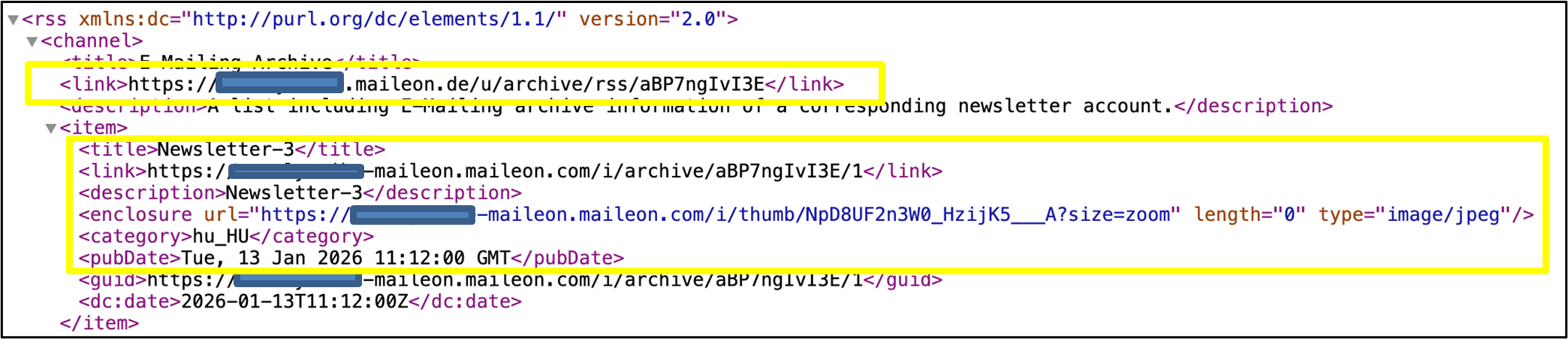
Fig. 6: The XML-Code of your emailing archive includes all listed emailings.
The XML file with the script based on the infos in the Emailing Archive list (fig. 6, yellow numbers 1–7):
- The general Emailing Archive RSS-Feed URL (LINK).
- The internal name of the emailing on position 1 in the list (ITEM.TITLE)
- The general Emailing Archive RSS-Feed URL with the addition “/1” at the end, referring to list position 1.
- The subject of the emailing, as the recipient sees it (ITEM.DESCRIPTION).
- The specific Archive-URL of this emailing is enclosed.
- The transmission language of the emailing (ITEM.CATEGORY).
- The dispatch date of the emailing (ITEM.PUBDATE)
As with the Emailing Archive URL, the Emailing Archive RSS-Feed URL also provides filtering by language using the URL parameter “?lang=xx”. Instead of “en”, any ISO-639-1 standardized languages can be used. This allows you to produce RSS feeds according to the transmission languages of your emailings.
Example for the syntax:
- RSS-Feed for emailings with German as transmission language: https://domain.maileon.de/u/archive/rss/s8bT5mzGdGU?lang=de
- RSS-Feed for emailings with English as transmission language: https://domain.maileon.de/u/archive/rss/s8bT5mzGdGU?lang=en