
Im Maileon Help-Center finden Sie umfassende Dokumentationen zu unserem System.
Beliebte Suchanfragen: Importe | Rest-API | Integrationen | SMS
-
Maileon Anleitungen
-
-
-
-
- 1. Basiseinstellungen
- 2. Template Editor2.0
- 3. Inhalt im Editor2.0 bearbeiten
- 3a - Editor 2.0 - App Panel Widgets
- 3b - Accessible Tables in the WYSIWYG Editor
- 3b - Barrierefreie Tabellen im WYSIWYG Editor (DE)
- 3d - SmartContent - Shopware 6 (DE)
- 3e - SmartContent - Shopware 6 (EN)
- 3f - Addition of Anchor-Links
- 4. Verteilerliste auswählen
- 5. Qualitätssicherung
- 6. Newsletter-Versand
-
- Bald verfügbar
-
-
-
-
- Bald verfügbar
-
FAQs
-
Grundlagen
-
Für Entwickler
-
-
- Adding Unsubscription Reason to Already Unsubscribed Contact
- Contacts
- Count Active Contacts By Filter ID
- Count Contacts By Filter ID
- Create Contact
- Create Contact (JSON)
- Create Contact by External ID
- Create Contact by External ID (JSON)
- Create Contact Preference
- Create Contact Preference Category
- Create Custom Field
- Custom Contact Fields
- Delete All Contacts
- Delete Contact By Email
- Delete Contact By Maileon ID
- Delete Contact Preference
- Delete Contact Preference Category
- Delete Contacts By External ID
- Delete Custom Field
- Delete Custom Field Values
- Delete Standard Field Values
- Delete Unsubscription-Marker
- Get Blocked Contacts
- Get Contact By Email
- Get Contact By Maileon ID
- Get Contact Preference
- Get Contact Preference Categories
- Get Contact Preference Category by Name
- Get Contacts
- Get Contacts By Email
- Get Contacts By External Id
- Get Contacts By Filter Id
- Get Count Contacts
- Get Custom Fields
- Get Preferences of Contact Preferences Category
- Get Unsubscription-Marker
- Rename Custom Field
- Set Unsubscription-Marker
- Standard Contact Fields
- Synchronize Contacts
- Synchronize Contacts Error Codes
- Unsubscribe Contact By Maileon Id
- Unsubscribe Contacts By Email
- Unsubscribe Contacts by External Id
- Update Contact By Email
- Update Contact By External ID
- Update Contact By Maileon ID
- Update Contact Preference
- Update Contact Preference Category
- Alle Artikel anzeigen ( 34 ) Artikel zusammenklappen
-
- Get Blocks
- Get Bounces
- Get Clicks
- Get Conversions
- Get Filtered Contacts
- Get Mailing Summaries
- Get Opens
- Get Recipients
- Get Replies
- Get Revenue
- Get Subscribers
- Get Unique Bounces
- Get Unique Clicks
- Get Unique Conversions
- Get Unique Opens
- Get Unsubscription Reasons
- Get Unsubscriptions
- Social Networks List
- Alle Artikel anzeigen ( 3 ) Artikel zusammenklappen
-
- Add Mailing Blacklist to Mailing
- Copy Mailing
- Create Dispatching
- Create Mailing
- Delete Mailing
- Delete Mailing Blacklist from Mailing
- Delete Trigger
- Get CMS2 Mailing As Zip
- Get Dispatching
- Get limit on number of contacts
- Get Mailing Archive URL
- Get Mailing Blacklists for Mailing
- Get Mailing ID By Name
- Get Mailing Report URL
- Get Mailing Thumbnail
- Get Mailing Thumbnail URL
- Get Mailings By Creator Name
- Get Mailings By Keywords
- Get Mailings By Schedule Time
- Get Mailings By States
- Get Mailings By Subject
- Get Mailings By Types
- Get Preview
- Get Preview Text
- Get Template
- Get Templates for CMS2
- Get The Reply-To Address
- Mailing – Add Attachment
- Mailing – Add Custom Mailing Properties
- Mailing – Copy Attachments
- Mailing – Create Schedule
- Mailing – Delete Attachment
- Mailing – Delete Attachments
- Mailing – Delete Schedule
- Mailing – Disable QoS Checks
- Mailing – Enable Target Group Update
- Mailing – Fill RSS SmartMailing Tags
- Mailing – Get “Ignore Permission” State
- Mailing – Get “Post Sendout Cleanup” State
- Mailing – Get Archival Duration
- Mailing – Get Attachment
- Mailing – Get Attachments
- Mailing – Get Count Attachments
- Mailing – Get DOI Mailing Key
- Mailing – Get HTML
- Mailing – Get List of Custom Mailing Properties
- Mailing – Get Locale
- Mailing – Get Mailing Domain
- Mailing – Get Max Attachment Size
- Mailing – Get Max Content Size
- Mailing – Get Name
- Mailing – Get Recipient Alias
- Mailing – Get result for Link Quality Check
- Mailing – Get result for Message Size Quality Check
- Mailing – Get result for Personalization Quality Check
- Mailing – Get result for Spam Quality Check
- Mailing – Get results for Approval Sendout Quality Check
- Mailing – Get results for Bounce Quality Check
- Mailing – Get results for Display Quality Check
- Mailing – Get results for Image Quality Check
- Mailing – Get results for Test Mail Sendout
- Mailing – Get Schedule
- Mailing – Get Sender Address
- Mailing – Get Sender Alias
- Mailing – Get Speed Level
- Mailing – Get State
- Mailing – Get Subject
- Mailing – Get Tags
- Mailing – Get Target Group Id
- Mailing – Get Target Group Update status
- Mailing – Get Text
- Mailing – Get Tracking Duration
- Mailing – Get Tracking Strategy
- Mailing – Get Type
- Mailing – Is Sealed
- Mailing – Remove Custom Mailing Property
- Mailing – Send Approval Mail to Targetgroup
- Mailing – Send Now
- Mailing – Send Testmail to Single Emailaddress
- Mailing – Send Testmail to Targetgroup
- Mailing – Set “Ignore Permission” State
- Mailing – Set “Post Sendout Cleanup” State
- Mailing – Set DOI Mailing Key
- Mailing – Set Html
- Mailing – Set Locale
- Mailing – Set Name
- Mailing – Set Recipient Alias
- Mailing – Set Sender Address
- Mailing – Set Sender Alias
- Mailing – Set Speed Level
- Mailing – Set Subject
- Mailing – Set Tags
- Mailing – Set Target Group Id
- Mailing – Set Text
- Mailing – Set Tracking Strategy
- Mailing – Start Bounce Quality Check
- Mailing – Start Image Quality Check
- Mailing – Start Link Quality Check
- Mailing – Start Message Size Quality Check
- Mailing – Start Personalization Quality Check
- Mailing – Start Quality Check
- Mailing – Update Custom Mailing Property
- Mailing – Update Schedule
- Reset Contents to Template
- Save CMS2 Mailing to Media Library
- Set limit on number of contacts before sending mailing
- Set Preview Text
- Set Template
- Set Template for CMS2 Mailing
- Set The Reply-To Address
- Upload CMS2 Mailing Contents
- Alle Artikel anzeigen ( 96 ) Artikel zusammenklappen
-
- Bald verfügbar
‚Split by Interests‘ node – Extension of Marketing Automation
1. Introduction
The Split by Interests node allows you to create complex automation paths based on multiple contact preferences (interests). Unlike the Split by Contact Preference Value node, which evaluates only a single preference, this node combines multiple interests using AND/OR logic.
This method enables a more precise customer journey through interest-based branching.
Typical use cases of ‘Split by Interests’ Node:
- personalized product recommendations
- newsletter segmentation
- interest-based campaigns
- event invitations
- loyalty programs
Find this node in Campaigns → Automations section (fig. 1).
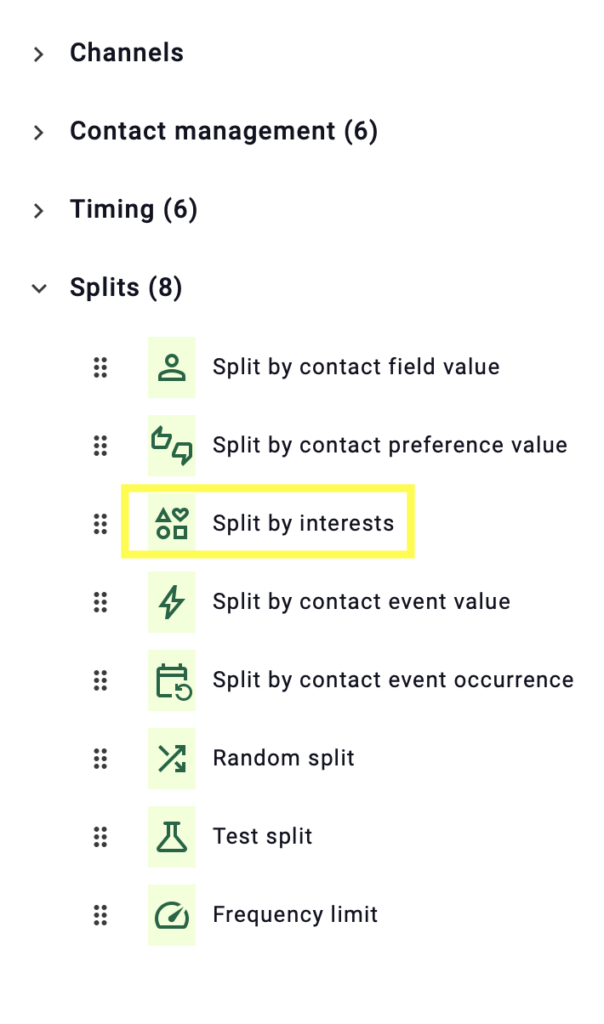
fig. 1: The ‘Split by Interests’ node is available in the ‘Splits’ category of the Automation Editor menu.
2. General Use Case
Use the Split by Interests node to separate contacts into different automation paths depending on several interests.
The node can create separate paths for contacts who, for example:
- are interested in product category A AND product category B
- are interested in product category C OR product category D
- have explicitly selected or not selected specific interests
- have preferences with an unset status
After the node is added to the automation, it contains two outputs (fig. 2):
- Path 1 – the first condition-based path
- Else – the fallback path for contacts who do not match any configured condition
To rename the Description or the Path, click the pencil icon.
To add further paths, click Add path. To edit a specific path, click the pencil icon or the corresponding button (Path 1, Path 2, …). The number of node outputs in the automation increases automatically with the configured paths.
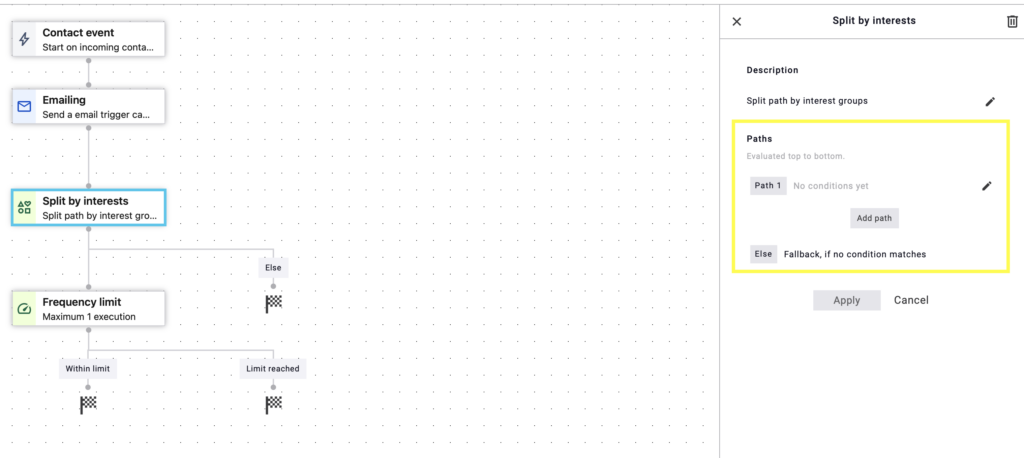
fig. 2: The primary division of the node: ‘Path 1’ or ‘Else’.
3. Configuring Split Conditions
Each path can contain multiple preference conditions organized in OR-blocks. Before adding a condition, select a preference from the drop-down menu (fig. 3).
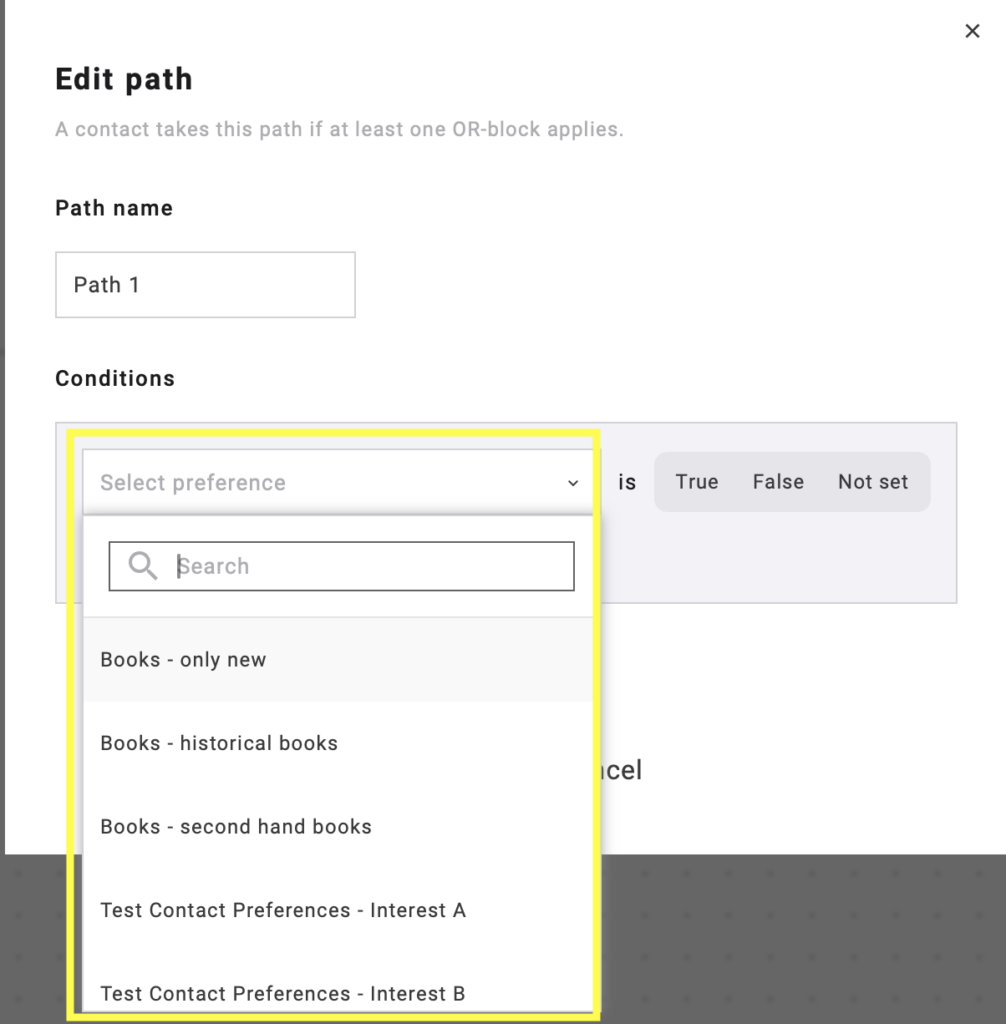
fig. 3: Select a preference from the drop-down menu before adding a condition to an OR-block.
When combining conditions (fig. 4):
Conditions within the same OR-block are combined with AND.
OR-blocks within a path are combined with OR.
When configuring a condition, available preference values are:
- True
- False
- Not set
Not set value allows marketers to target contacts who have no value assigned for a specific preference.
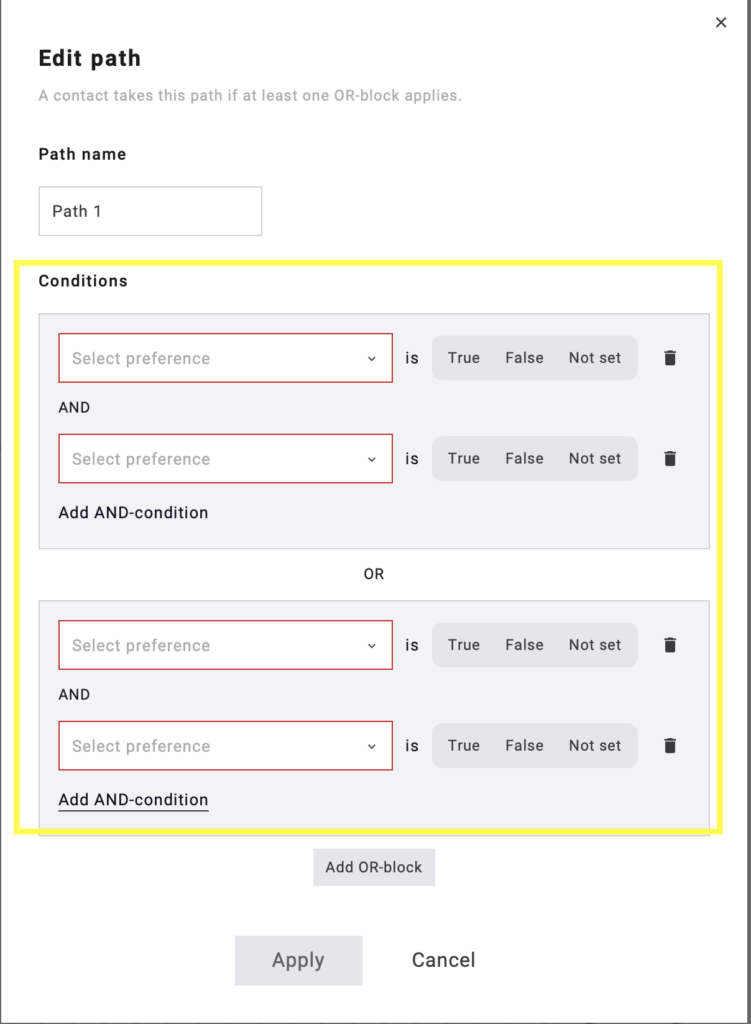
fig. 4: Set preference-based conditions using AND/OR logic and target contacts with True/False or ‚Not set‘ values.
Example (fig. 5):
Preference A = true AND Preference B = false
OR
Preference C = true AND Preference D = Not set
After setting the conditions, OR-blocks and values, click Apply.
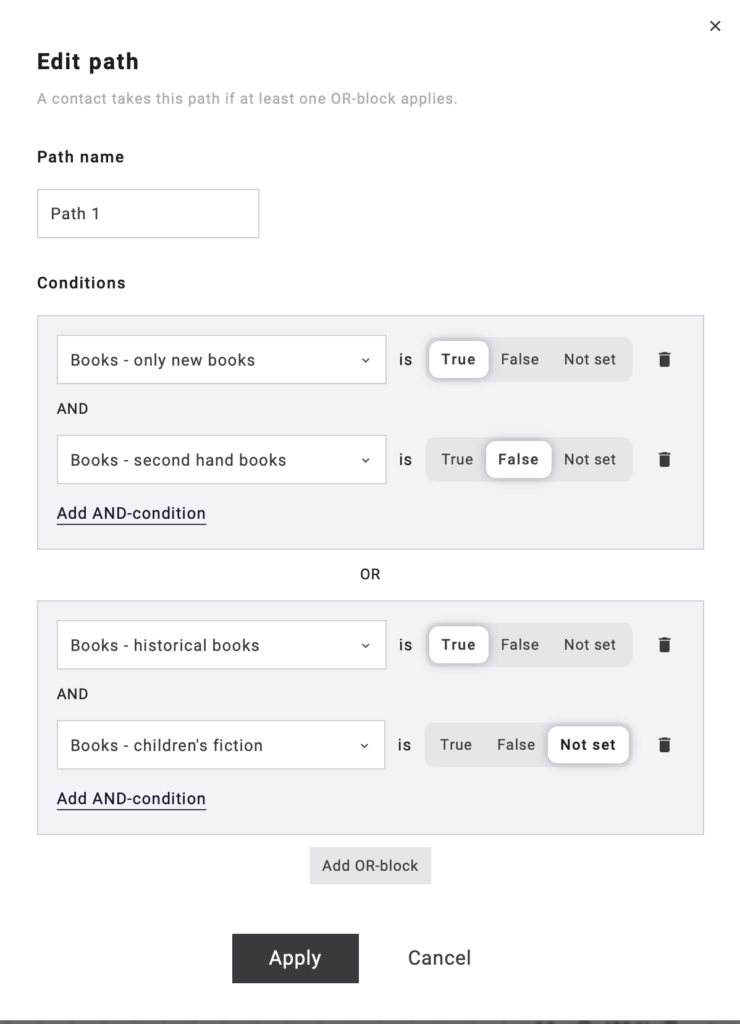
fig. 5: Once all conditions, OR-blocks and values are set, click ‘Apply’.
Note: A contact takes a path if at least one configured OR-block matches the contact’s preferences.
Maximum limits (per node):
AND-conditions per OR-block: 10
OR-blocks: 50
4. Path Evaluation Order
Paths are evaluated sequentially from top to bottom (fig. 6). The automation checks:
- Path 1
- Path 2
- Path 3
- etc.
The contact is assigned to the first matching path. If none of the configured paths match, the contact continues through the Else path.
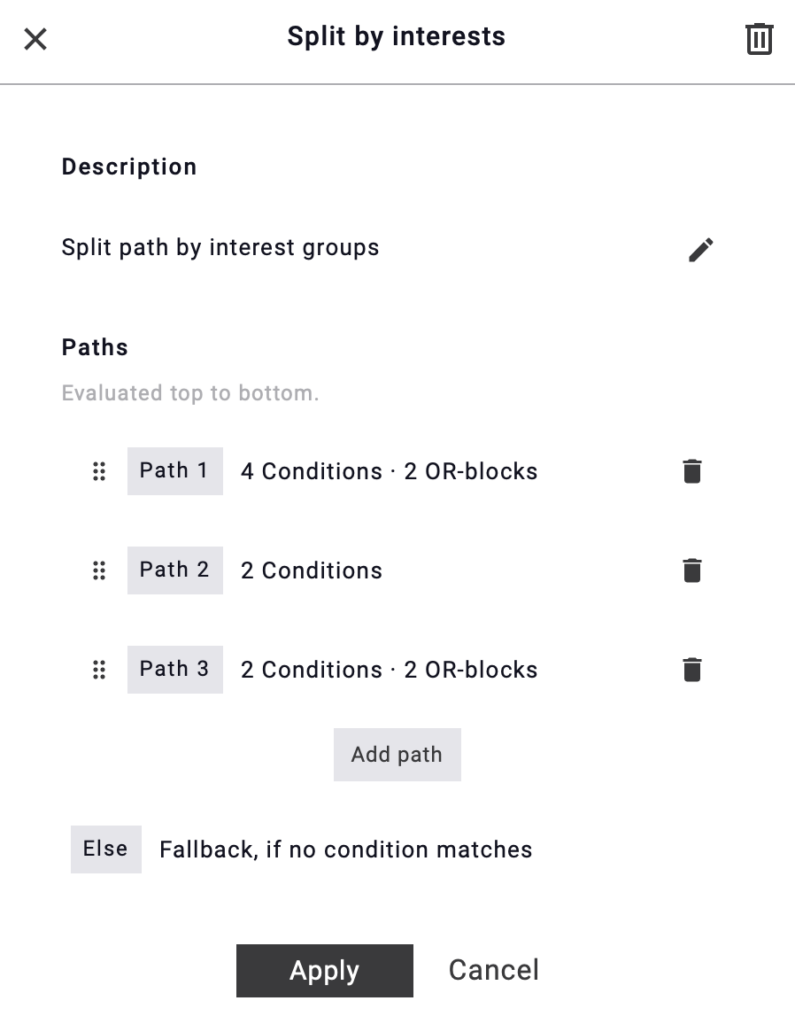
fig. 6: Contacts follow the first matching path, or the Else path if no configured conditions match.
4.1. Managing Paths and Conditions
Split by Interests node supports:
- adding new paths dynamically
- editing path names
- adding multiple preference conditions
- creating OR-blocks that contain multiple AND-conditions
- reordering paths using drag and drop
4.2. Validation
Before saving the automation, the system checks that all configured rules are complete.
A condition cannot be saved if:
- no preference is selected
- no preference value is selected