
Im Maileon Help-Center finden Sie umfassende Dokumentationen zu unserem System.
Beliebte Suchanfragen: Importe | Rest-API | Integrationen | SMS
Image Carousel Widget
1. Overview
The Image Carousel is a widget in the Maileon email editor that lets you display up to 6 images as a single, navigable element within your emailings. This widget behaves differently from other widgets: it is not interactive in every emailing client. When planning your campaign, be sure to take into account the information covered in this documentation. For any further questions, please contact us at support@xqueue.com.
2. Accessing and Using the Widget
Find the Image Carousel in Widgets → Dynamic Elements in the emailing editor (fig. 1).
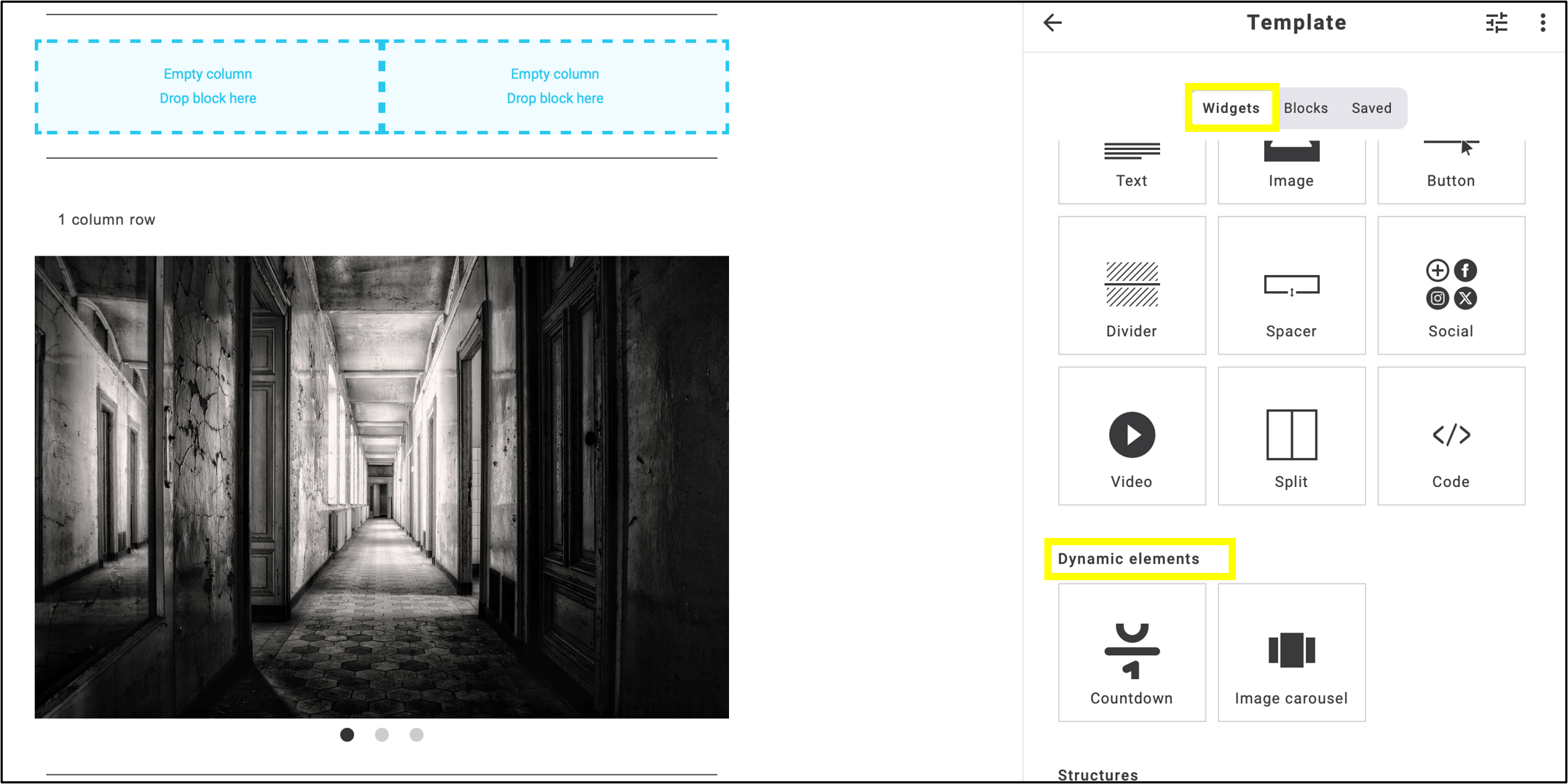
fig. 1: The ‘Image Carousel’ is located under ‘Dynamic Elements’ within ‘Widgets’.
The usage is similar to other widgets: drag it into the emailing editor, then add an image and links by clicking the pencil icon (fig. 2).
Editing existing slides: Click the pencil  icon.
icon.
Addition/Duplication of slides: Click the + icon (max. 6 slides).
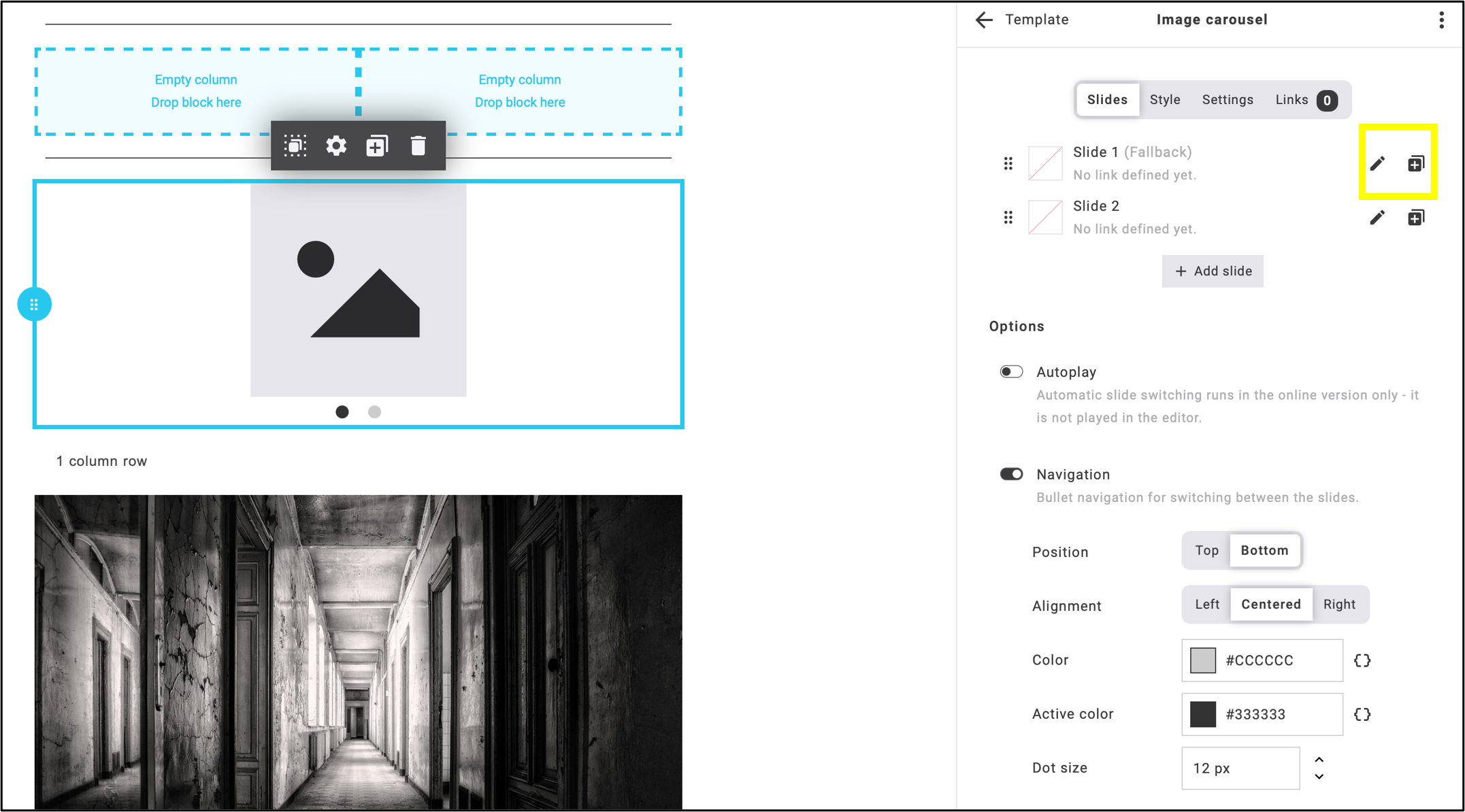
fig. 2: Editing/Duplication of slides.
An image’s URL can be edited in the same way as any other image in the email editor by clicking on the pencil icon (fig. 3).
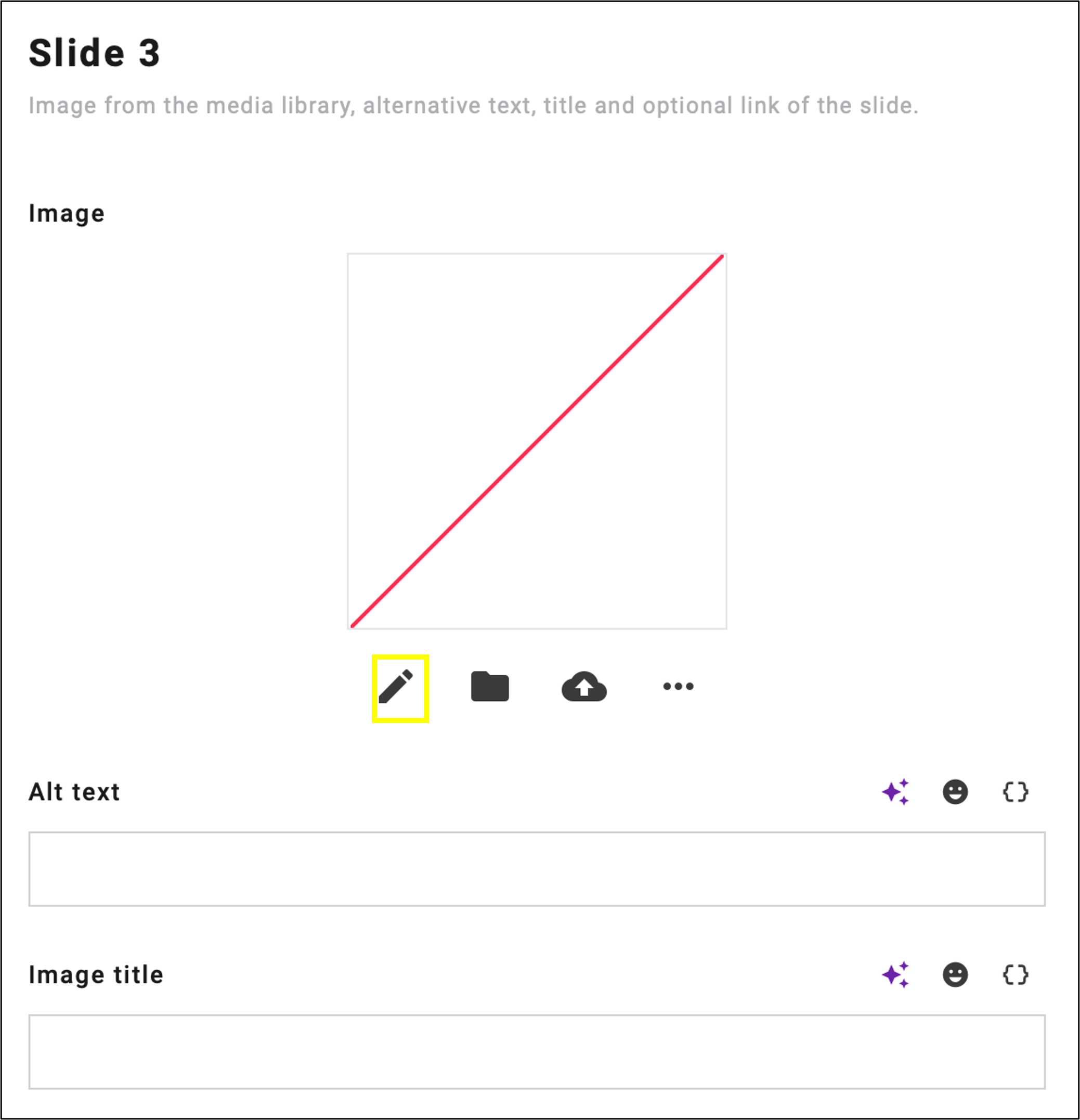
fig. 3: Click the pen icon to edit the image URL.
By clicking on the Add placeholder icon  you can optionally use account placeholders to insert contact fields, email properties, data extensions, voucher codes, smart content elements, etc. (fig. 4). Then click Save.
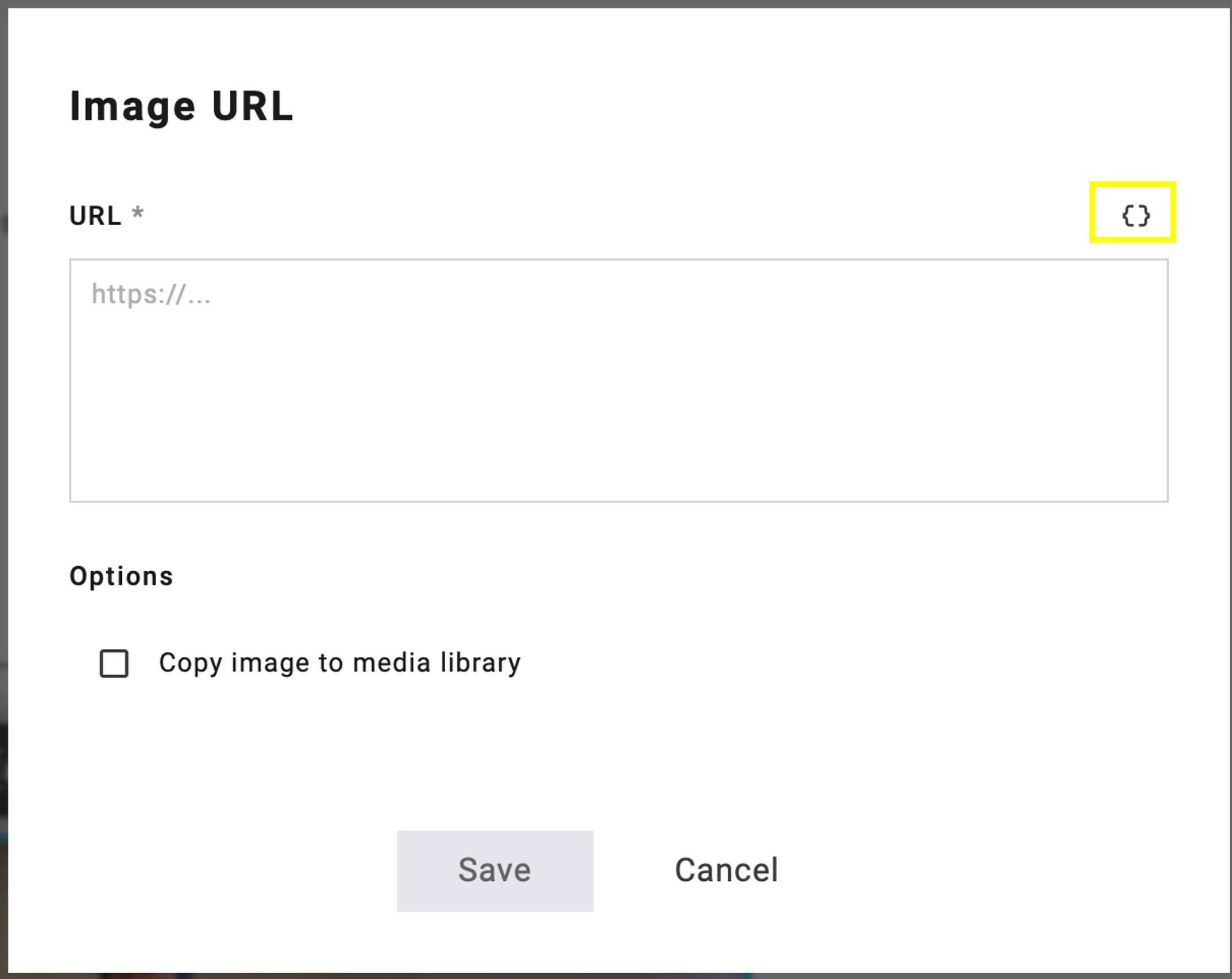
fig. 4: Click on ‘add placeholder’ icon to add any placeholder to the Image URL.
Once the images have been uploaded and configured, a popup will notify you if the image dimensions need to be adjusted (fig. 5). As with other widgets, the editing options are organized into separate tabs: Slides, Style, Settings, and Links. Each slide can have a different image, title, alt text, and link.
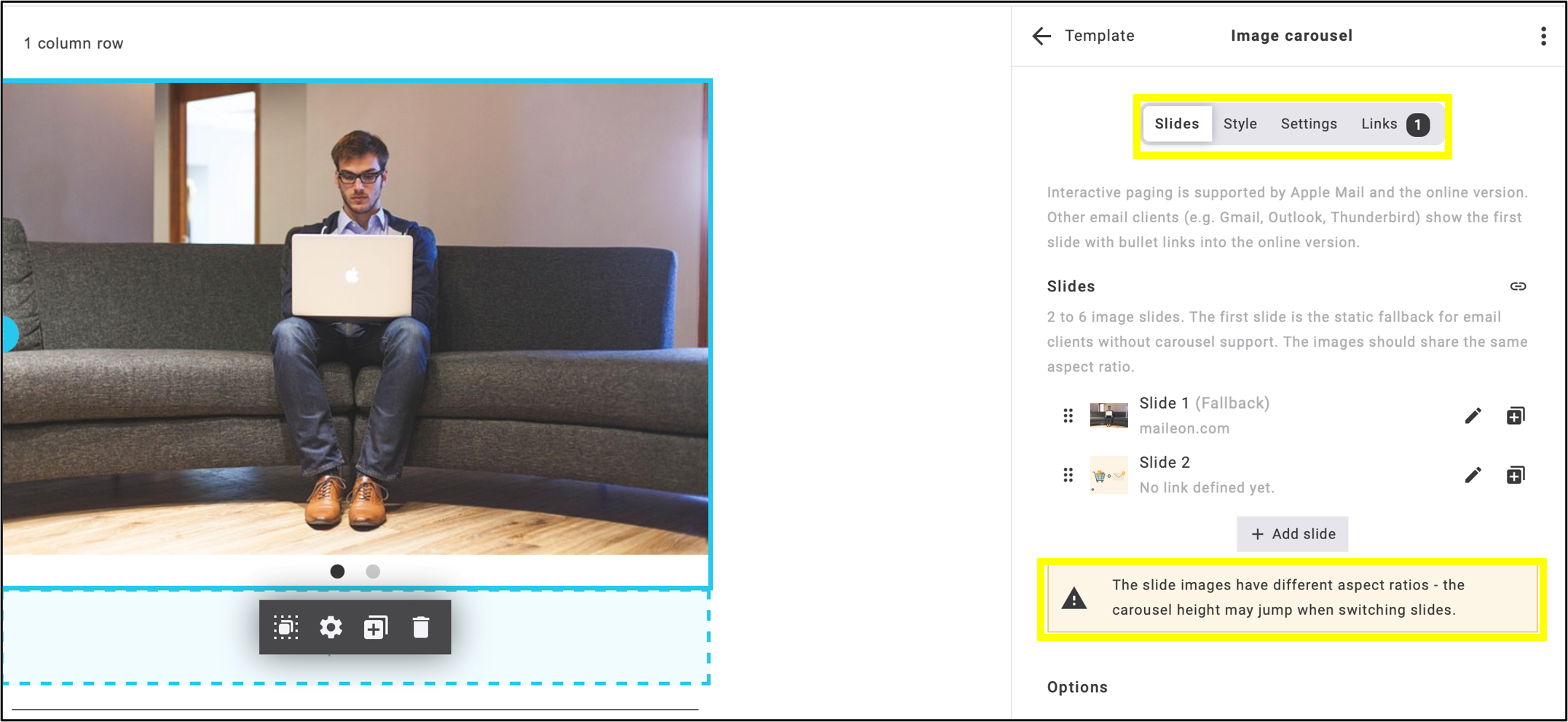
fig. 5: A popup alerts you to any discrepancies in image dimensions. Style, settings, and links can each be edited in their own tab.
Note: You also have the option to unify the links by clicking on the link icon: specify a link once, and it will then be applied to all existing slides (fig. 6).
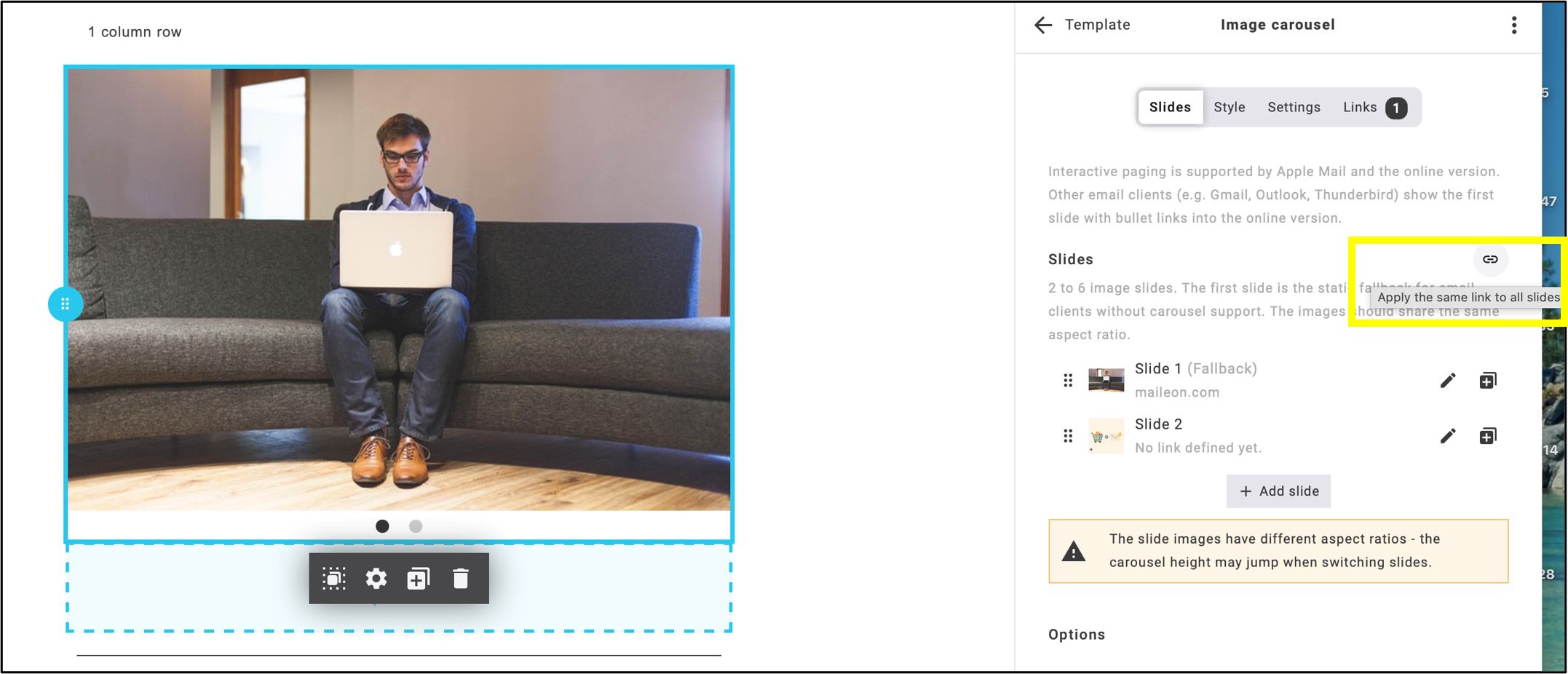
fig. 6: Clicking the link icon allows you to unify the links across all slides.
Slides can be reordered at any time by hovering the cursor over the six-dot icon and dragging. The cursor will change to a hand icon when hovering over it (fig. 7).
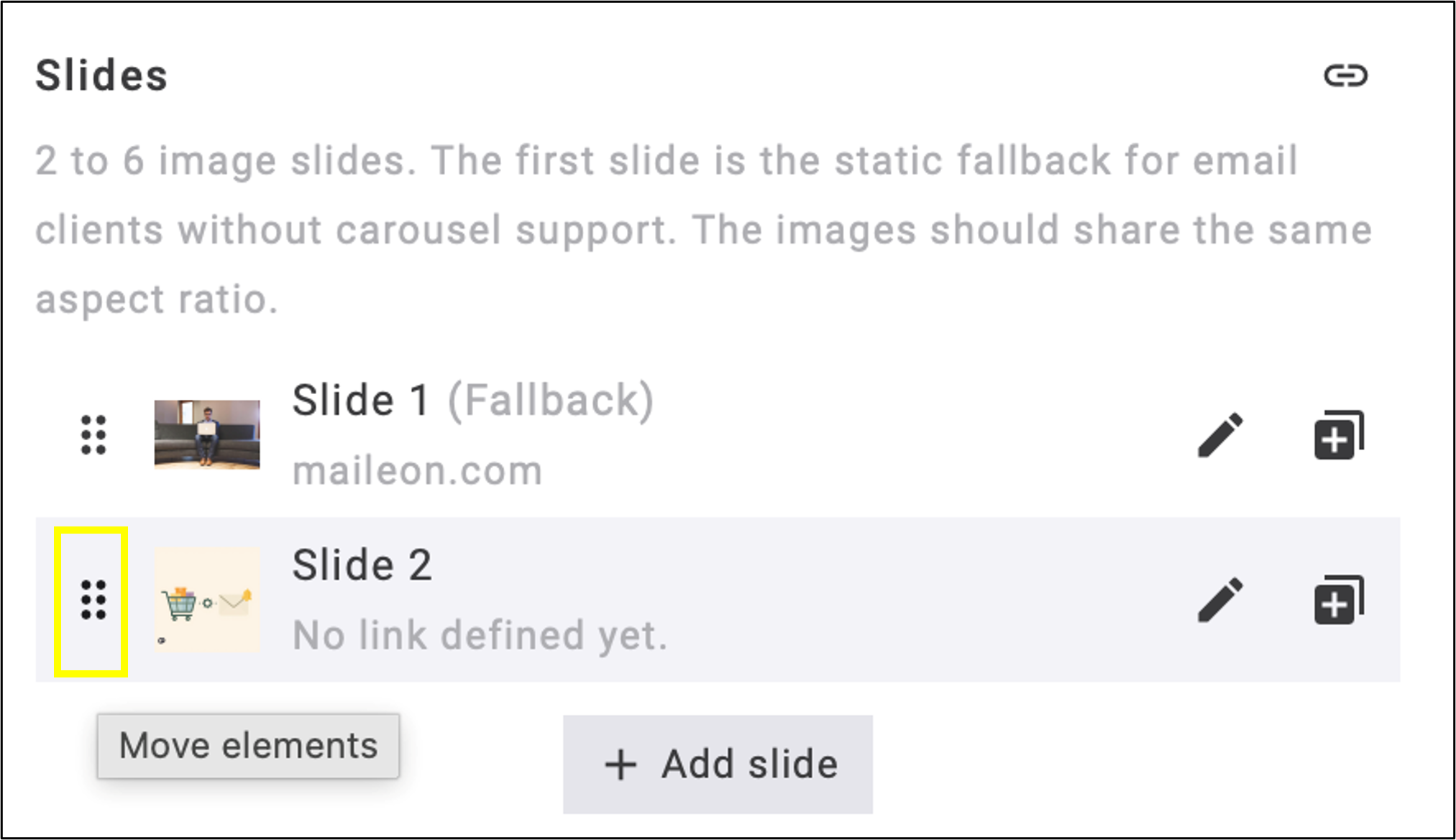
fig. 7: The six-dot icon allows you to reorder the slides.
3. Client Support: What Do You See When Using the Widget?
The Image Carousel does not behave the same way in every email client. Before adding it to your campaign, make sure you understand how it will appear to your recipients.
In clients where the carousel is not interactive, the first slide is always displayed. There is no way to select which slide serves as this fallback. The first slide in the sequence is automatically shown.
Note: Always place the most important image first, as recipients using non-interactive email clients will see this slide as the fallback.
If you reorder the slides, the fallback updates automatically. This means that the slide currently first in the sequence will always be the one shown in non-interactive clients.
The table below summarizes how the Image Carousel widget behaves across different email clients.
| Client | Behaviour |
|---|---|
| Apple Mail (macOS/iOS) | Fully interactive; slides can be navigated within the email. |
| Online version (browser) | Fully interactive; swipe and (optional) AutoPlay are also supported. |
| Gmail | Displays the 1st slide with tappable dots that link to the online version. |
| Outlook (new, Windows) | Same as Gmail. |
| Outlook classic | Same as Gmail. |
| Thunderbird | Same as Gmail. |
| K-9 Mail | Same as Gmail. |
This behaviour is not a defect, but a technical limitation of the respective email clients. All recipients can access the same content: the slide with its corresponding dot navigation, as well as all other slides via the online version.
3.1. Browsers That Do Not Support the Image Carousel
In browsers that do not support the Image Carousel, the navigation dots do not function as navigation elements. Clicking a navigation dot will instead open the online version in a new browser window.
The link associated with the navigation dot also contains additional information that ensures the online version scrolls directly to the corresponding image or widget within the newsletter and automatically loads the selected slide.
This allows users on browsers that do not support the Image Carousel to still reach the selected content directly.
4. Navigation
Navigation between the slides in the Image Carousel is done exclusively via dots (fig. 8). This navigation can also be turned off entirely by deactivating the Navigation option.
The navigation settings include:
- Position: above or below the slides, with configurable horizontal and vertical placement.
- Alignment: relative to the slides: left, center, or right.
- Colour: sets the colour of the non-fallback slide dots; a placeholder can also be inserted.
- Active colour: sets the colour of the fallback slide dot; a placeholder can also be inserted.
- Dot size (in pixels).
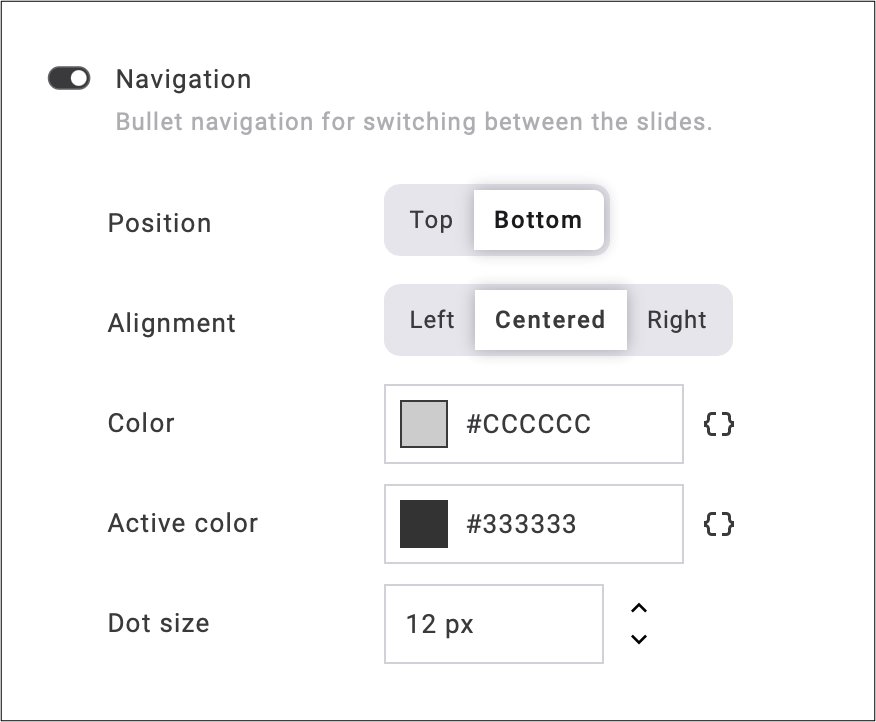
fig. 8: The components and use of the navigation panel.
5. AutoPlay
AutoPlay (fig. 9) is an optional feature governed by the following rules:
- It works exclusively in the online version. It never runs in emailing clients (Gmail, Outlook, etc.).
- Delay: adjustable between 2 and 10 seconds.
- Loop: if AutoPlay is enabled, it always loops indefinitely. There is no separate „loop“ option that can be turned off.
- Stop conditions (once any of these occur, AutoPlay stops permanently and does not restart):
- the reader clicks a dot or swipes
- the reader arrives at the online version via a dot link from an email (in this case, AutoPlay does not start at all)
- the reader’s operating system has the „reduced motion“ setting enabled
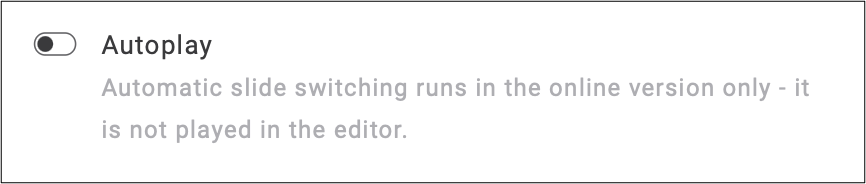
fig. 9: The automated slide switching (Autoplay) is available only in the online version, not in the editor.
6. Content Rules for Slides
- Each carousel can contain between 2 and 6 slides.
- Each slide can include the following:
- Image (from the media library)
- Alt text
- Title (tooltip) (optional)
- Link (optional: if provided, the entire image becomes clickable)
Note: When adding image text and alt text, you can indicate if the text is AI-generated by the sparkles icon  . You can also optionally use emoji icons
  , and account placeholders (fig. 10).
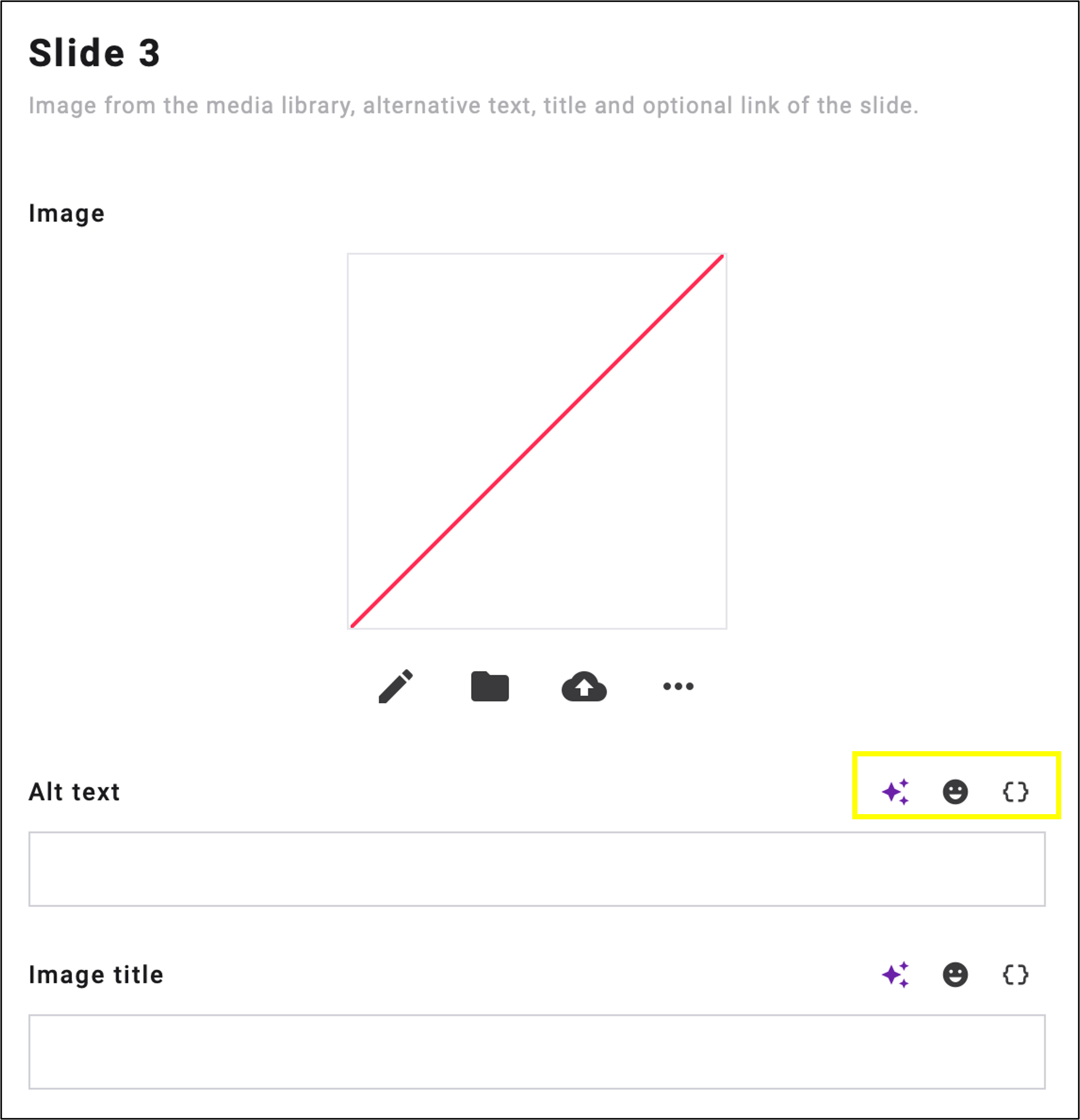
fig. 10: Use image text and alt text to mark AI-generated text, optionally add emoji and account placeholders.
7. Height, Background, and Aspect Ratios
- If an image is smaller than the configured height, the remaining space is filled with the configured background colour (as a band/bar).
- If an image exceeds the configured height, the slide automatically grows to accommodate it; no image is cropped. The editor indicates which slide is affected in such cases.
- It is recommended that all images share the same aspect ratio. Otherwise, the carousel’s height may change when switching between slides.
- The editor automatically warns you if the aspect ratios of the slide images differ by more than 2%. Images with identical aspect ratios but different pixel sizes can be used without issue: the slides adapt fluidly.