
Im Maileon Help-Center finden Sie umfassende Dokumentationen zu unserem System.
Beliebte Suchanfragen: Importe | Rest-API | Integrationen | SMS
-
Maileon Anleitungen
-
-
- Bald verfügbar
-
-
-
-
- Bald verfügbar
-
-
-
-
- Bald verfügbar
-
FAQs
-
Grundlagen
-
Für Entwickler
-
-
- Adding Unsubscription Reason to Already Unsubscribed Contact
- Contacts
- Count Active Contacts By Filter ID
- Count Contacts By Filter ID
- Create Contact
- Create Contact (JSON)
- Create Contact by External ID
- Create Contact by External ID (JSON)
- Create Contact Preference
- Create Contact Preference Category
- Create Custom Field
- Custom Contact Fields
- Delete All Contacts
- Delete Contact By Maileon ID
- Delete Contact Preference
- Delete Contact Preference Category
- Delete Contacts By Email
- Delete Contacts By External ID
- Delete Custom Field
- Delete Custom Field Values
- Delete Standard Field Values
- Delete Unsubscription-Marker
- Get Blocked Contacts
- Get Contact By Email
- Get Contact By Maileon ID
- Get Contact Preference
- Get Contact Preference Categories
- Get Contact Preference Category by Name
- Get Contacts
- Get Contacts By Email
- Get Contacts By External Id
- Get Contacts By Filter Id
- Get Count Contacts
- Get Custom Fields
- Get Preferences of Contact Preferences Category
- Get Unsubscription-Marker
- Rename Custom Field
- Set Unsubscription-Marker
- Standard Contact Fields
- Synchronize Contacts
- Synchronize Contacts Error Codes
- Unsubscribe Contact By Maileon Id
- Unsubscribe Contacts By Email
- Unsubscribe Contacts by External Id
- Update Contact By Email
- Update Contact By External ID
- Update Contact By Maileon ID
- Update Contact Preference
- Update Contact Preference Category
- Alle Artikel anzeigen ( 34 ) Artikel zusammenklappen
-
- Get Blocks
- Get Bounces
- Get Clicks
- Get Conversions
- Get Filtered Contacts
- Get Opens
- Get Recipients
- Get Replies
- Get Revenue
- Get Subscribers
- Get Unique Bounces
- Get Unique Clicks
- Get Unique Conversions
- Get Unique Opens
- Get Unsubscription Reasons
- Get Unsubscriptions
- Social Networks List
- Alle Artikel anzeigen ( 2 ) Artikel zusammenklappen
-
- Add Mailing Blacklist to Mailing
- Copy Mailing
- Create Dispatching
- Create Mailing
- Delete Mailing
- Delete Mailing Blacklist from Mailing
- Delete Trigger
- Get CMS2 Mailing As Zip
- Get Dispatching
- Get limit on number of contacts
- Get Mailing Archive URL
- Get Mailing Blacklists for Mailing
- Get Mailing ID By Name
- Get Mailing Report URL
- Get Mailing Summaries
- Get Mailing Thumbnail
- Get Mailing Thumbnail URL
- Get Mailings By Creator Name
- Get Mailings By Keywords
- Get Mailings By Schedule Time
- Get Mailings By States
- Get Mailings By Subject
- Get Mailings By Types
- Get Preview
- Get Preview Text
- Get Template
- Get Templates for CMS2
- Get The Reply-To Address
- Mailing – Add Attachment
- Mailing – Add Custom Mailing Properties
- Mailing – Copy Attachments
- Mailing – Create Schedule
- Mailing – Delete Attachment
- Mailing – Delete Attachments
- Mailing – Delete Schedule
- Mailing – Disable QoS Checks
- Mailing – Enable Target Group Update
- Mailing – Fill RSS SmartMailing Tags
- Mailing – Get “Ignore Permission” State
- Mailing – Get “Post Sendout Cleanup” State
- Mailing – Get Archival Duration
- Mailing – Get Attachment
- Mailing – Get Attachments
- Mailing – Get Count Attachments
- Mailing – Get DOI Mailing Key
- Mailing – Get HTML
- Mailing – Get List of Custom Mailing Properties
- Mailing – Get Locale
- Mailing – Get Mailing Domain
- Mailing – Get Max Attachment Size
- Mailing – Get Max Content Size
- Mailing – Get Name
- Mailing – Get Recipient Alias
- Mailing – Get result for Link Quality Check
- Mailing – Get result for Message Size Quality Check
- Mailing – Get result for Personalization Quality Check
- Mailing – Get result for Spam Quality Check
- Mailing – Get results for Approval Sendout Quality Check
- Mailing – Get results for Bounce Quality Check
- Mailing – Get results for Display Quality Check
- Mailing – Get results for Image Quality Check
- Mailing – Get results for Test Mail Sendout
- Mailing – Get Schedule
- Mailing – Get Sender Address
- Mailing – Get Sender Alias
- Mailing – Get Speed Level
- Mailing – Get State
- Mailing – Get Subject
- Mailing – Get Tags
- Mailing – Get Target Group Id
- Mailing – Get Target Group Update status
- Mailing – Get Text
- Mailing – Get Tracking Duration
- Mailing – Get Tracking Strategy
- Mailing – Get Type
- Mailing – Is Sealed
- Mailing – Remove Custom Mailing Property
- Mailing – Send Approval Mail to Targetgroup
- Mailing – Send Now
- Mailing – Send Testmail to Single Emailaddress
- Mailing – Send Testmail to Targetgroup
- Mailing – Set “Ignore Permission” State
- Mailing – Set “Post Sendout Cleanup” State
- Mailing – Set DOI Mailing Key
- Mailing – Set Html
- Mailing – Set Locale
- Mailing – Set Name
- Mailing – Set Recipient Alias
- Mailing – Set Sender Address
- Mailing – Set Sender Alias
- Mailing – Set Speed Level
- Mailing – Set Subject
- Mailing – Set Tags
- Mailing – Set Target Group Id
- Mailing – Set Text
- Mailing – Set Tracking Strategy
- Mailing – Start Bounce Quality Check
- Mailing – Start Image Quality Check
- Mailing – Start Link Quality Check
- Mailing – Start Message Size Quality Check
- Mailing – Start Personalization Quality Check
- Mailing – Start Quality Check
- Mailing – Update Custom Mailing Property
- Mailing – Update Schedule
- Reset Contents to Template
- Save CMS2 Mailing to Media Library
- Set limit on number of contacts before sending mailing
- Set Preview Text
- Set Template
- Set Template for CMS2 Mailing
- Set The Reply-To Address
- Upload CMS2 Mailing Contents
- Alle Artikel anzeigen ( 97 ) Artikel zusammenklappen
Active DOIs
Active DOIs
After having switched the created DOI draft active the DOI mailing is continuously active with no expiry date. You have the option to deactivate it using the Stop DOI Mailing button; however, this action does not result in actual deletion.
 Fig. 1: Activated DOI mailings appear in the Active DOI mailing list, where DOI key is also located.
Deactivated DOI mailings are automatically added to the DOI history. From this point, the DOI mailing can be completely and permanently deleted (fig. 1). However, it is not recommended to delete them.
 Fig. 2: Permanent deletion is not recommended for a DOI mailing, as recipient data should be retained.
Please note: As with Trigger mailings, neither inactivated nor activated DOI mailings can be edited. If you desire to make changes in your DOI mailing, or you wish to reactivate the deactivated DOI mailing, please create a copy of the DOI mailing from either the Active DOIs or DOI history.
The copy will automatically be placed in the DOI drafts, where it can be edited as previously described (fig. 3).

Fig. 3: Copy to reactivate and re-edit active or passive DOI mailings.
Note: copies will be assigned a new DOI key! To replace a DOI mailing, please ensure you enter (manually) the DOI key of the previous DOI version in the basic settings of the new DOI mailing.
To replace the content of an existing DOI mailing, the active DOI must be archived, and the draft version activated. The system indicates a notification, which serves as a reminder that a DOI mailing with this key is still in use (fig. 4).

Fig. 4: The system displays a notification if two DOI keys are in use concurrently.
After changing the DOI key, simply set the new DOI to active and archive the previous one. This can be automatically accomplished by simply selecting the checkbox DOI Mailing versioning at the bottom of the interface (fig. 5).

Fig. 5: Select the checkbox ‚DOI Mailing versioning‘ before activating the DOI mailing when needed.
Once the new emailing has been activated, the subscription process will reference this new version, as archived DOIs are always inactive and cannot be sent out.
If the checkbox in the last box is selected, the previous default DOI mailing will be set to inactive.
For Active DOIs, an emailing can be edited to a limited extent by clicking on the screwdriver icon (fig. 6).

Fig. 6: Option to edit the landing pages of an active DOI mailing.
This option does only apply to the confirmation and error page, as indicated by the pop-up window (fig. 7).

Fig. 7: Possibility to switch the assigned confirmation and error page in case of active DOIs.
For active DOIs and DOI history, click on the emailing to get a survey of the response data. Here, you can also dispatch test DOI mailings using the envelope icon or modify the hyperlinks within the DOI mailing by using the screwdriver icon (fig. 8).

Fig. 8: Clicking on the active or archived DOI mailing provides access not only to statistics but also to testing and editing options.
In this statistic, you can see:
- subscriptions,
- opens,
- clicks,
- bounce rates, and
- other statistics.
Clicking on the screwdriver icon you have the option to modify elements in the emailing. It is possible to adjust images and links in active, paused or historical emailings. Due to technical reasons, only images provided by servers of the system, and only trackable, non-personalised links can be edited.
To display the most recent status of updated images in this window, it is advisable to clear the browser cache.
For more editing options, click on the screwdriver icon again (fig. 9).

Fig. 9: To modify the hyperlinks in the DOI mailing please click on the screwdriver icon.
At this point you may modify the links in the emailing (fig. 10).
Please note:
- The subscribe link cannot be modified here!
- The DOI link of an active mailing cannot be changed.

Fig. 10: Link-editing option after clicking on a link.
Additional statistics can also be viewed on the active DOIs and DOI history pages. The icons in the top right-hand corner provide various individual and collective processing options (fig. 11).

Fig. 11: Statistics and other data processing options.
Options menu from left to right:
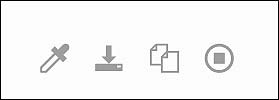
- Pipette icon: Chi² independence test. It’s a statistical method used to determine which DOI mailing produced better results. To use this feature, select two DOI mailings for comparison, then click the icon to include them in the test.
- Arrow icon: Export listing or shipping figures.
- Double-sheet icon: Copy selected DOI mailings and move them to DOI drafts.
- Circle icon: Stop sending and moving DOI mailings to the DOI history.